Settings & Claude
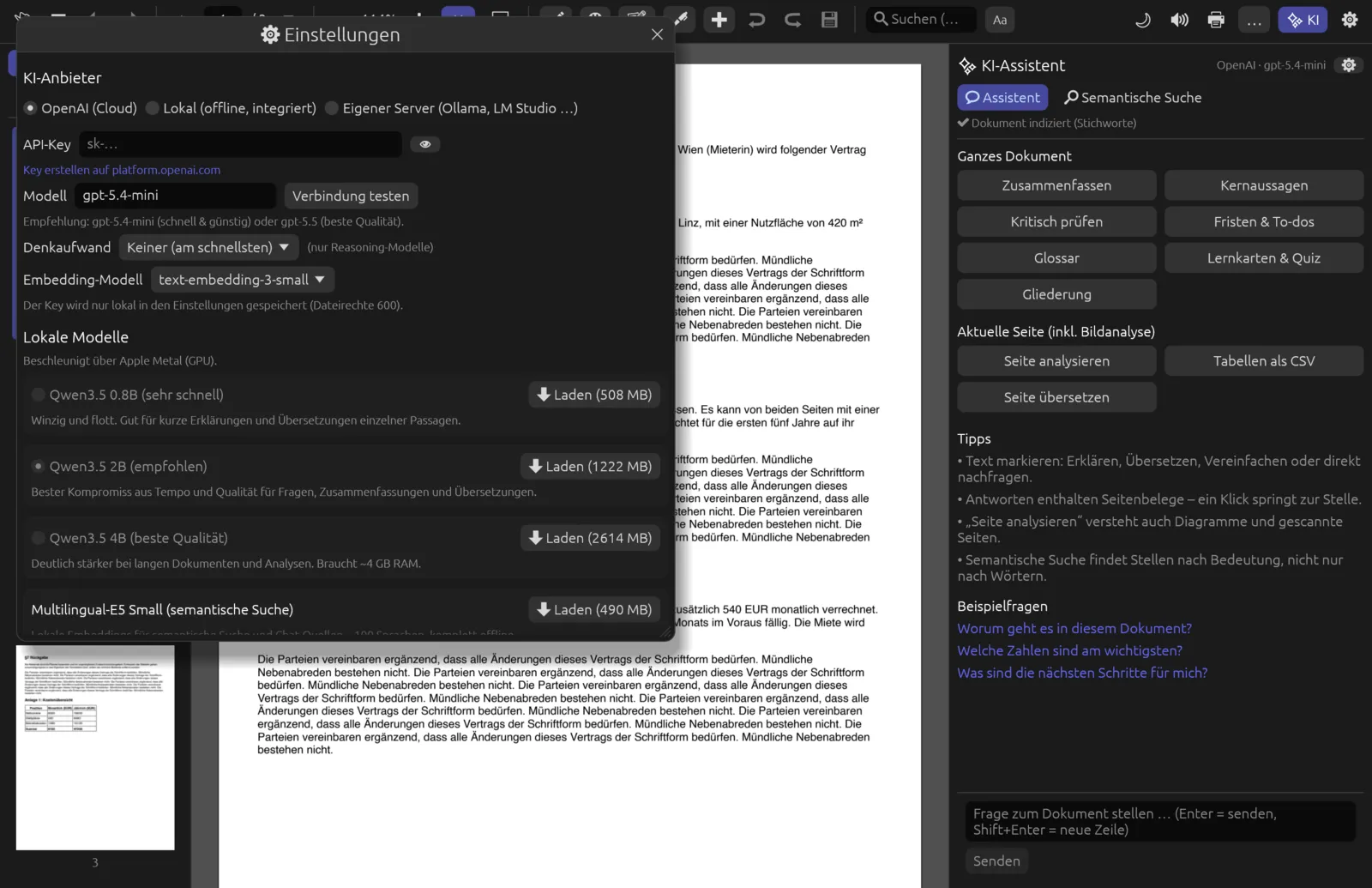
In the ⚙ Einstellungen (Settings) window you choose which AI works for you, download local models, and set the answer language and the appearance. This is also where you allow Claude to control Pagelier: through the Model Context Protocol (MCP), Claude Desktop or Claude Code can operate Pagelier – opening, reading and searching PDFs and showing you passages.
The Settings window
There are three ways to open the settings:
- the cog ⚙ (Einstellungen) at the far right of the toolbar,
- ⌘ , – the same shortcut closes the window again,
- the small cog (KI-Einstellungen, AI settings) in the header of the AI assistant, or a click on the AI status line on the start screen.
The window is a list of sections that you scroll through: KI-Anbieter (AI provider), Lokale Modelle (local models), Semantische Suche (Embeddings) (semantic search), Antworten (answers), Darstellung (appearance), Steuerung durch Claude (MCP) (control by Claude) and Speicherorte (storage locations). There is no Apply button: every change takes effect immediately. Settings are saved when you close the window with ×; changes to embeddings and MCP are saved straight away.
AI provider
Three radio buttons decide who answers the assistant's questions: OpenAI (Cloud) (the default), Lokal (offline, integriert) (local, offline, built in) and Eigener Server (Ollama, LM Studio …) (your own server). Their pros and cons are described in the AI Assistant chapter. Different fields appear below depending on your choice.
OpenAI (Cloud)
| Field | Meaning |
|---|---|
| API-Key | Your OpenAI key (it starts with sk-). It is masked; 👁 reveals it, 🙈 hides it again. Pagelier strips spaces and line breaks picked up when copying. If the field is empty, Pagelier uses the environment variable OPENAI_API_KEY if it is set. |
| Modell (model) | Name of the chat model, gpt-5.4-mini by default. The app recommends gpt-5.4-mini (fast and inexpensive) or gpt-5.5 (best quality). |
| Verbindung testen (test connection) | Checks the key and loads the list of models on your account. The drop-down Auswählen … (choose) then appears, from which you can pick a model. Errors (e.g. a wrong key) appear in red underneath. |
| Denkaufwand (reasoning effort) | Only for reasoning models: Keiner (am schnellsten) (none, fastest; the default), Niedrig (low), Mittel (medium), Hoch (gründlich) (high, thorough). More effort means more thorough but slower and more expensive answers. If a model does not support the setting, Pagelier retries without it. |
| Embedding-Modell (embedding model) | text-embedding-3-small (default) or text-embedding-3-large for the semantic index, if OpenAI computes it. Changing it rebuilds the index of the open document. |
The API key is stored in plain text in the settings file on your computer. On macOS and Linux the file is readable only by your user account (permissions 600). Do not pass the file on, and do not take screenshots with the key visible.
Local (offline, built in)
This provider has no fields of its own. Pagelier points out that everything runs on your computer and refers you to the Lokale Modelle section below, where you download and choose the model.
Your own server (Ollama, LM Studio …)
| Field | Meaning |
|---|---|
| Server-URL | Base address of the OpenAI-compatible interface, http://localhost:11434/v1 (Ollama) by default. For LM Studio: http://localhost:1234/v1. |
| API-Key (optional) | Only needed if your server requires a key. This field is always masked. |
| Modell / Verbindung testen | Model name, llama3.2 by default. Verbindung testen fetches the server's model list into the Auswählen … drop-down. |
Local models
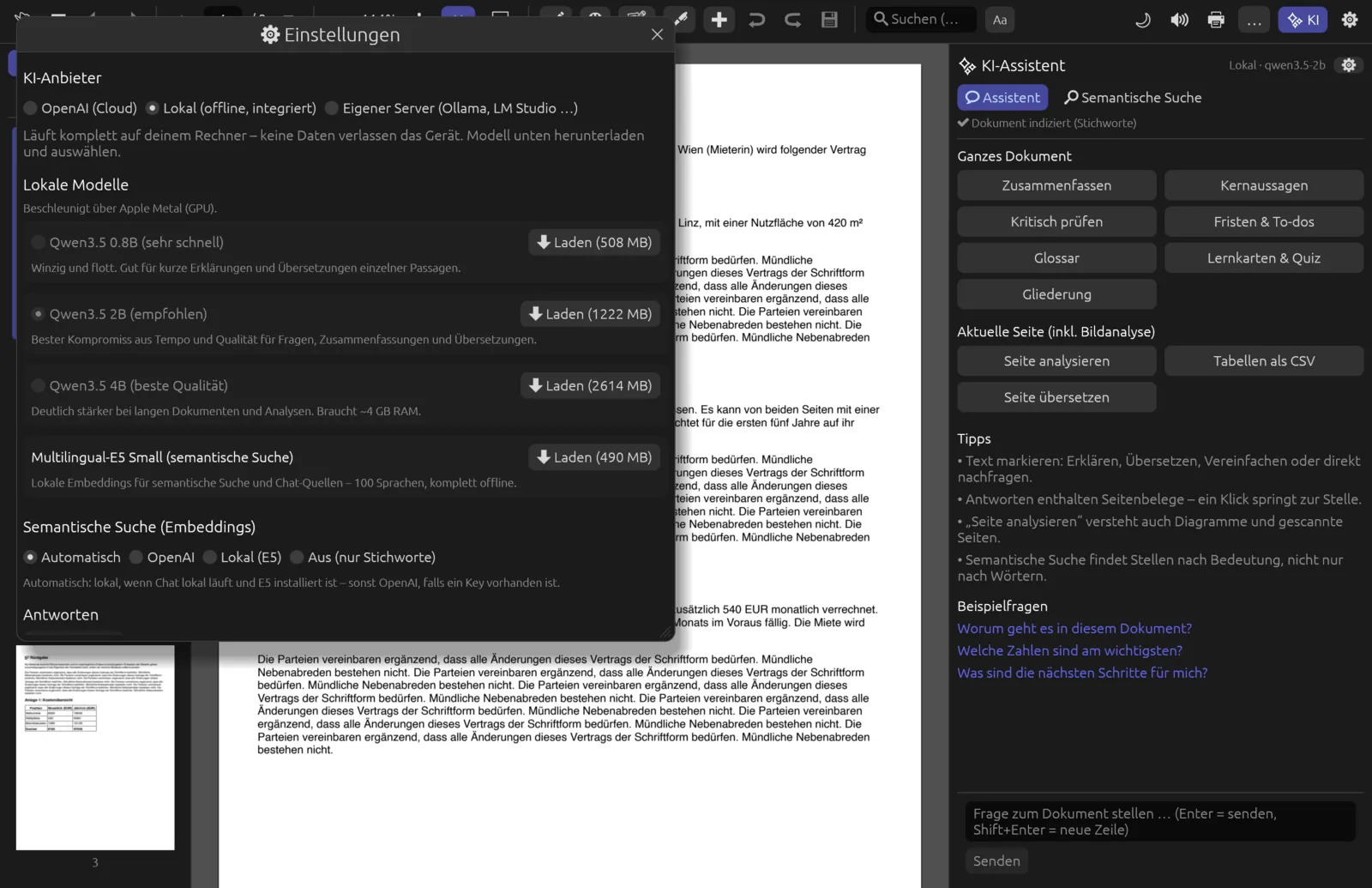
The Lokale Modelle section lists every model Pagelier can run on your computer. Below the heading it says what does the computing: “Beschleunigt über Apple Metal (GPU).” (accelerated by Apple Metal) on a Mac, otherwise “Läuft auf der CPU.” (runs on the CPU). The models come from Hugging Face and are only downloaded when you ask.
| Model | Download | Use |
|---|---|---|
| Qwen3.5 0.8B (sehr schnell – very fast) | 508 MB | Tiny and quick; good for short explanations and translating single passages. |
| Qwen3.5 2B (empfohlen – recommended) | 1222 MB | The best balance of speed and quality for questions, summaries and translations. |
| Qwen3.5 4B (beste Qualität – best quality) | 2614 MB | Much stronger on long documents and analysis; needs about 4 GB of memory. |
| Multilingual-E5 Small (semantische Suche – semantic search) | 490 MB | Not a chat model: it computes the semantic index for searching by meaning and for the sources in the chat – in about 100 languages, entirely offline. |
Downloading and using a local model
- Open the settings (⌘ ,) and scroll to Lokale Modelle.
- Click ⬇ Laden (… MB) next to the model you want, for example “Qwen3.5 2B (empfohlen)”. A progress bar showing the megabytes downloaded so far replaces the button. You can close the window and carry on working; the download continues in the background.
- When the download is finished, ✔ installiert (installed) appears on the right, with 🗑 Entfernen (remove) next to it.
- Click the radio button in front of the model name. This selects the model and at the same time switches the provider to Lokal (offline, integriert).
- Pagelier loads the model into memory in the background. The AI assistant's header now shows “Lokal · ” and the model ID, e.g.
qwen3.5-2b. - To search by meaning without internet, also download “Multilingual-E5 Small”.
- Failed download: below the card, “Download fehlgeschlagen” (download failed) appears in red with the reason (e.g. an HTTP error). Click ⬇ Laden again. Pagelier does not re-download files of a model that are already complete; an interrupted file starts again from the beginning.
- Removing: 🗑 Entfernen deletes the model from disk. You can download it again at any time.
- Older models: if you still have models from the previous Qwen3 family, the note “Ältere Modelle (Qwen3, … MB) werden nicht mehr verwendet.” (older models are no longer used) appears with 🗑 Entfernen. Pagelier has automatically switched your earlier choice to the corresponding Qwen3.5 model.
- Builds without local chat models: if Pagelier was built without llama.cpp, an orange note above the list says so; only the E5 embedding model is then available.
A local model must be fully downloaded before the assistant can use it. If you ask a question before then, it replies “Das lokale Modell … ist noch nicht heruntergeladen (Einstellungen → Lokale Modelle).” (the local model has not been downloaded yet).
Semantic search (embeddings)
Here you decide who computes the semantic index used by semantic search and by the chat for long documents.
| Option | Effect |
|---|---|
| Automatisch (automatic, the default) | OpenAI if the chat runs through OpenAI and a key is present. Otherwise local with E5, if installed. If neither: keywords only. |
| OpenAI | Always OpenAI with the chosen embedding model (requires a key). |
| Lokal (E5) (local) | Always the local Multilingual-E5 Small model (must be downloaded). |
| Aus (nur Stichworte) (off, keywords only) | No semantic index; search and chat work with keywords only. |
When you change the option, Pagelier immediately rebuilds the index of the open document. Locally, Pagelier builds the index on a Mac using the graphics processor (otherwise on the processor); individual search queries run on the processor. After three minutes without a search query, Pagelier frees the search model's memory again.
With the “Lokal” provider or your own server, Automatisch never sends text off your computer: without E5 you get keyword search only. Download E5 for semantic search.
Answers
The Antwortsprache (answer language) drop-down sets the language the assistant answers in: Deutsch, English, Français, Español, Italiano, Nederlands or Sprache des Dokuments (language of the document). How it affects translations is explained in the AI Assistant chapter.
Appearance
- Dunkles App-Design (dark app theme) – toolbar, sidebar and panels dark (the default) or light. Takes effect immediately.
- Seiten im dunklen Lesemodus anzeigen (show pages in dark reading mode) – shows the PDF pages themselves light on dark, which is easier on the eyes at night. You can toggle the same setting with the moon icon 🌙 (☀ while reading mode is on) in the toolbar (see Interface & Reading). The file itself is not changed.
Control by Claude (MCP)
Pagelier includes an MCP server. It lets Claude – in the desktop app or in Claude Code in the terminal – use Pagelier as a tool. You might ask Claude to “find the notice period in the lease and show me the passage”, and Claude opens the file, reads, searches, scrolls and selects the passage in your Pagelier window.
Switching it on, and security
The checkbox Claude darf Pagelier steuern (lokaler MCP-Server) (Claude may control Pagelier, local MCP server) is on from the start. Below it, a green line reads “✔ aktiv – nur auf diesem Rechner erreichbar, mit Zugriffstoken” (active – reachable only on this computer, with access token). This is how the connection works:
- The running app opens an endpoint on
127.0.0.1only, so it cannot be reached over the network. - Each time it starts, it creates a new random access token and stores the port and token in the file
mcp.jsonin the data folder (readable only by you on macOS and Linux). Pagelier rejects requests without this token and requests coming from web browsers. - Claude starts
pagelier --mcpas a small helper process. It answers Claude's protocol and passes tool calls on to the running app. If Pagelier is not running yet, it starts the app automatically and waits up to 30 seconds for it to be ready. The app stays open even when Claude quits.
If you untick the box, Pagelier closes the endpoint immediately; Claude then receives a message that Pagelier is not responding and that control must be enabled in the settings.
Through MCP, Claude sees everything you let Pagelier open and can use the built-in assistant – with whichever provider is selected in your settings. What Claude itself does with the content is governed by the terms of your Claude account.
Adding Pagelier to Claude Desktop
- Install Claude Desktop and start it once so that its configuration folder exists.
- In Pagelier, open the settings and scroll to Steuerung durch Claude (MCP).
- Next to Claude Desktop:, click In Claude Desktop eintragen (add to Claude Desktop).
- Pagelier reports “Eingetragen in … – Claude Desktop neu starten” (added to … – restart Claude Desktop). It has added the server
pagelier, with the path of this program and the argument--mcp, toclaude_desktop_config.json. Your other entries are kept; Pagelier backs up the old file asclaude_desktop_config.json.bak. - Quit Claude Desktop completely and start it again. The Pagelier tools are then available in Claude.
If Pagelier cannot find the configuration folder, it reports “Nicht möglich: Claude Desktop scheint nicht installiert zu sein” (not possible: Claude Desktop does not seem to be installed). If the existing configuration is not valid JSON, Pagelier changes nothing and tells you so.
Adding Pagelier to Claude Code
- Open the settings and scroll to Steuerung durch Claude (MCP).
- Under Claude Code (Terminal): you will find the ready-made command, for example
claude mcp add --scope user pagelier -- "/Applications/Pagelier.app/…/pagelier" --mcpwith the path of your installation. Click Kopieren (copy). - Paste the command into the terminal and run it. Thanks to
--scope user, the entry applies to all your projects. - Restart Claude Code.
/mcpshows whether “pagelier” is connected.
If you move Pagelier or reinstall it, the program path changes. Add it again in that case.
The tools for Claude
Pagelier offers Claude 14 tools. Page numbers start at 1. Tools that only read are marked as read-only for Claude.
| Tool | What it does |
|---|---|
get_status | State of the viewer: open document (path, title, page count, current page), selected text, search, index status, view and AI model. Read-only. |
open_document | Opens a PDF file (absolute path, ~ allowed, optionally with a password) and waits until it has loaded. Starts the app if needed. |
list_recent_documents | List of recently opened PDF files. Read-only. |
get_page_text | Text of one page or a range of pages, at most 50 pages per call. Read-only. |
render_page | A page as a PNG image (200–2400 pixels wide, 1200 by default) – for charts, layout and scans. Read-only. |
get_outline | Bookmarks or table of contents with page numbers. Read-only. |
go_to_page | Scrolls the Pagelier window to the given page. |
search_text | Literal, case-insensitive full-text search. Highlights the hits in the window, jumps to the first and returns pages with excerpts. |
semantic_search | Search by meaning; the results also appear in the app's Semantische Suche tab. |
select_text | Selects a passage, given word for word, on a page – to show it to you or for the assistant's selection actions. |
set_view | Changes the view: zoom (10–800 %), fit width or whole page, dark pages, and showing or hiding the sidebar and AI panel. |
ask_assistant | Asks the built-in AI assistant a question. The answer appears with page references in the app's chat and is returned to Claude together with the model name and the cited pages. |
run_assistant_action | Runs an assistant action: summary, key_points, critique, tasks, glossary, quiz, outline (document); analyze_page, extract_tables, translate_page (page, optionally with a page number); explain_selection, translate_selection, simplify_selection, summarize_selection (selection, call select_text first). |
Assistant answers via MCP may take up to ten minutes, a semantic search up to one minute. A typical sequence is open_document → get_outline → search_text or get_page_text → go_to_page and select_text to show you the result.
Through MCP, Claude can read, search, scroll, select and use the assistant. Editing, saving, redacting and deleting are not among the tools.
Where your data is stored
At the bottom of the window, the Speicherorte section shows the two folders on your computer: Daten & Modelle (data and models) and Index-Cache.
| What | macOS | Windows | Linux |
|---|---|---|---|
Settings (settings.json) | ~/Library/Application Support/technology.ampunkt.Pagelier | %APPDATA%\ampunkt\Pagelier\config | ~/.config/pagelier |
Data: models (models), the PDFium PDF library (pdfium), MCP endpoint (mcp.json) | ~/Library/Application Support/technology.ampunkt.Pagelier | %APPDATA%\ampunkt\Pagelier\data | ~/.local/share/pagelier |
Index cache (*.idx.json) | ~/Library/Caches/technology.ampunkt.Pagelier | %LOCALAPPDATA%\ampunkt\Pagelier\cache | ~/.cache/pagelier |
settings.json holds every setting in this window, plus the list of recently opened files (at most twelve) and your drawn signature (see Forms & Signature) – and the API key, if you have entered one. If the file is damaged, Pagelier starts with default values and keeps the original as settings.json.broken, so your key is not lost.
The index cache contains the text passages and vectors of documents already indexed. You can delete the folder at any time; Pagelier rebuilds the index the next time you open a file. Models are best removed with 🗑 Entfernen in the settings.
If your installation used to be called FrenchPDF, Pagelier takes over the settings, API key, PDFium and downloaded models from the old folders on first start rather than downloading everything again.