Pagelier – Manual
Every feature of Pagelier, explained with step-by-step guides and screenshots from the app: from opening and reading through the AI assistant, comments and editing to forms, redaction, digital signatures, converting and checking.
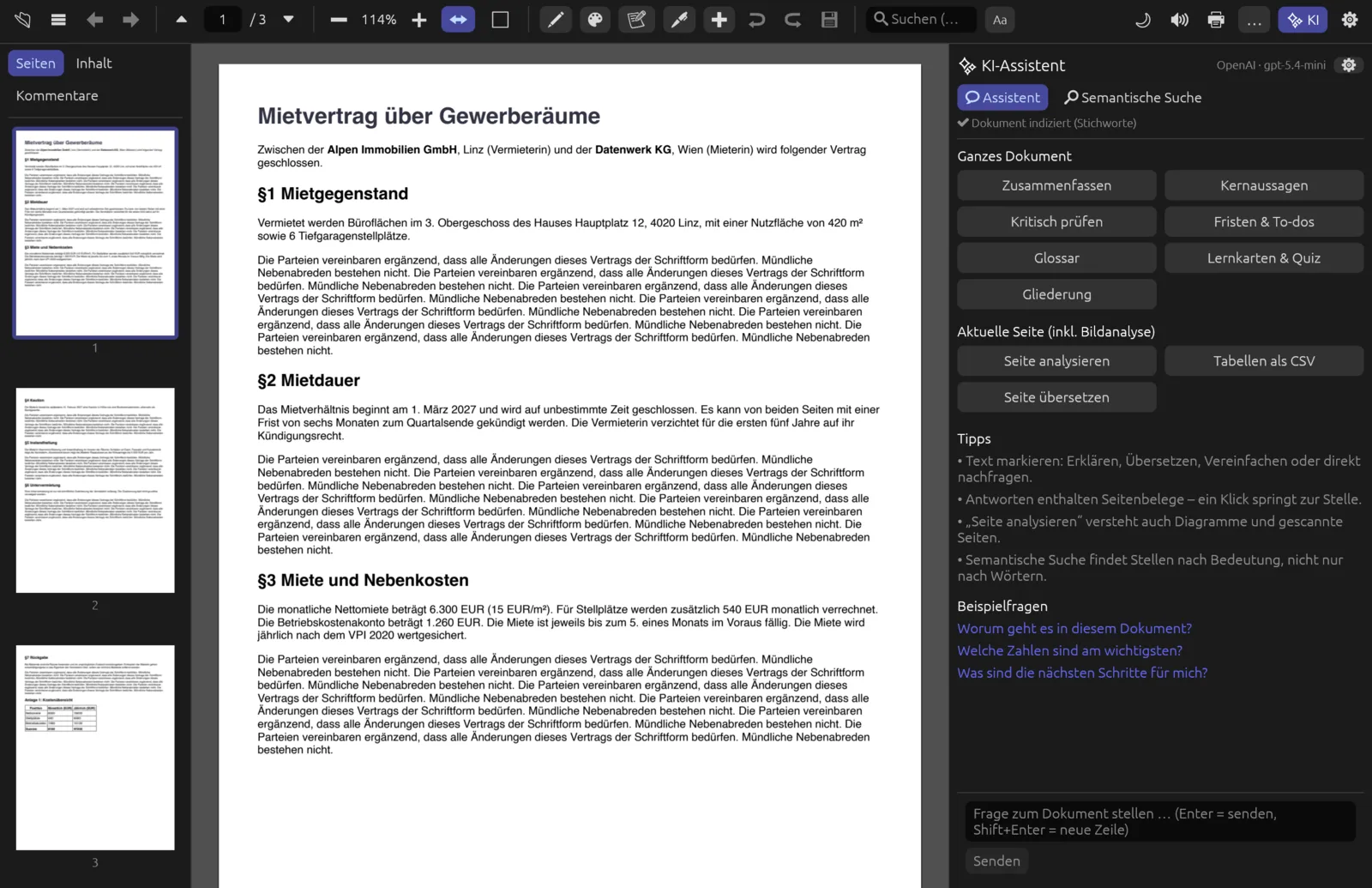
Pagelier's interface is in German. This manual names every button and menu in German, as you see it on screen, and gives the English meaning in brackets the first time it appears – for example Speichern (Save). The assistant itself answers in any language you choose.
Chapters
Installing, opening PDFs, tabs, saving and printing.
02Interface & readingToolbar, sidebar, views, search, read aloud, keyboard shortcuts.
03AI assistantQuestions with page references, actions, semantic search – cloud or local.
04Highlighting & commentsHighlights, notes, replies and status.
05EditingChange existing text and images, add text, shapes, stamps, headers and footers.
06Pages & documentsReorder, rotate, merge, split, crop, bookmarks.
07Forms & signatureFill in and create forms, place your signature.
08Redact, protect & signTrue redaction, password protection, digital signatures.
09Convert & exportText recognition, Word, images, Office files to PDF.
10Check & compareAccessibility, PDF/A, print – and comparing two versions.
11Settings & ClaudeAll settings, local models, control by Claude (MCP).
Conventions in this manual
- Commands from the … menu at the right of the toolbar are written like this: – menu …, column Umwandeln (Convert), command Als Word-Dokument (.docx) … (As Word document).
- Keyboard shortcuts are given for macOS, for example ⌘ F. On Windows and Linux, use Ctrl instead of ⌘.
- Names of buttons and fields are highlighted.
- The screenshots show the fictitious sample document “Mietvertrag über Gewerberäume” (lease for commercial premises). Click an image to see it full size.
Press / to jump to the search box on the left and search all chapters.