AI Assistant
The AI assistant reads your PDF alongside you and answers questions about it – with page references that take you straight to the passage. It summarises, pulls out deadlines and amounts, explains selected passages, translates pages and finds passages by their meaning rather than their exact wording. You decide who does the work: OpenAI in the cloud, a model running on your own computer, or your own server.
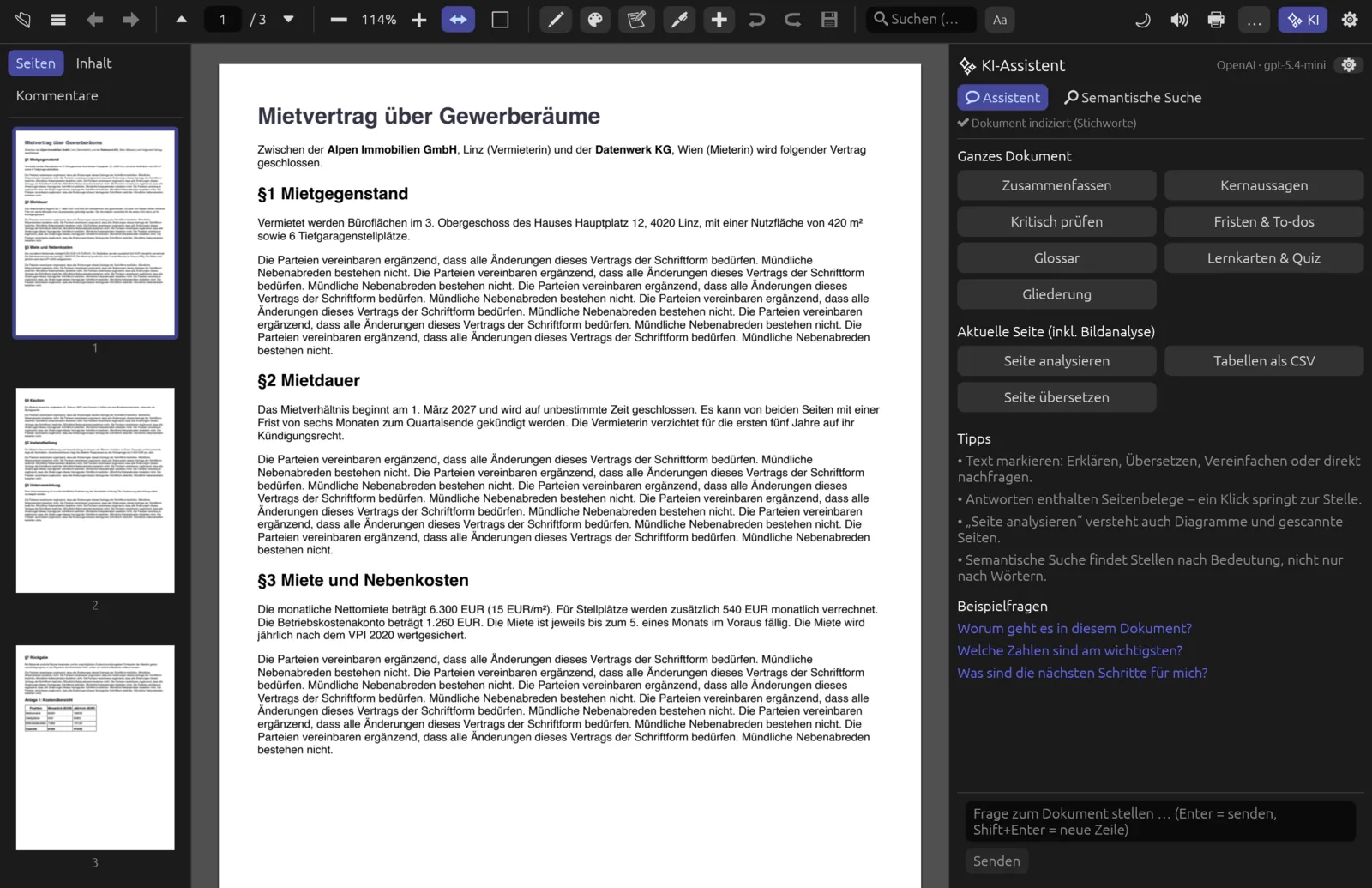
The assistant at a glance
The ✨ KI-Assistent (AI assistant) panel sits on the right of the window. Show or hide it with the ✨ KI (AI) button in the toolbar or with ⌘ J; when you open it from the keyboard the cursor goes straight into the input field. The panel has these parts:
- Header – on the right, in small print, the provider and model currently answering, e.g. “OpenAI · gpt-5.4-mini”, “Lokal · qwen3.5-2b” or “Server · llama3.2”. The cog ⚙ (KI-Einstellungen, AI settings) opens the settings.
- Two tabs – 💬 Assistent (assistant) for questions and actions, 🔎 Semantische Suche (semantic search) for searching by meaning.
- Index status – a small line shows how far Pagelier has got with preparing the document: Warte auf Text … (waiting for text), Lese Text … (reading text), Erstelle semantischen Index … (building semantic index, with a progress bar) and finally ✔ Dokument indiziert (semantisch) (document indexed, semantic) or ✔ Dokument indiziert (Stichworte) (document indexed, keywords). The section The index explains the difference.
- Conversation – your questions appear on the right in coloured bubbles, the answers on the left beneath them.
- Input – at the bottom, the field Frage zum Dokument stellen … (ask a question about the document) with Senden (send); once there are answers, also ✨ Aktionen (actions) and 🗑 Leeren (clear).
Each open document has its own conversation. Switch tabs and you see the other document's chat.
Setting up a provider
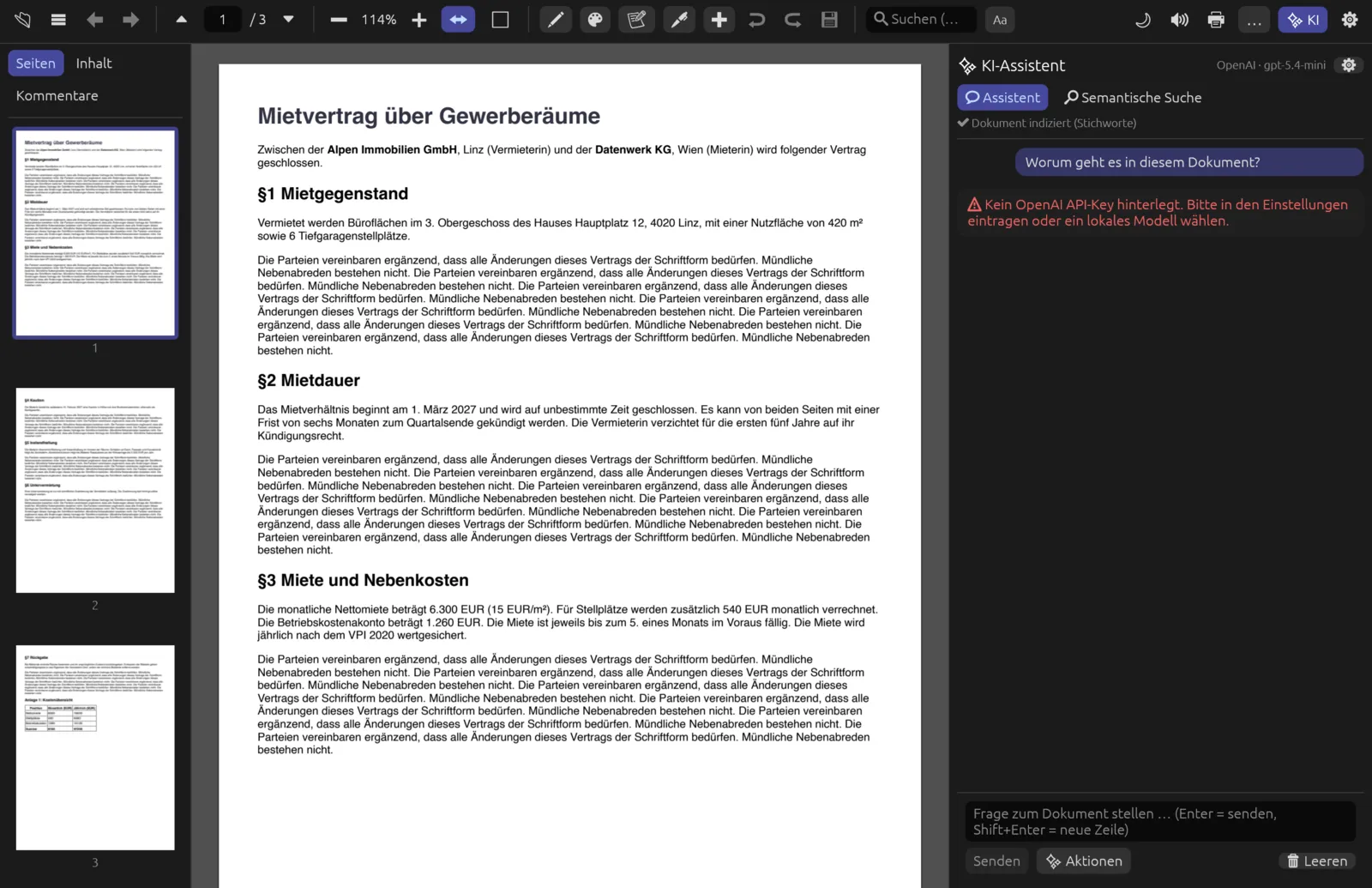
Before the assistant can answer, it needs a language model. Pagelier supports three providers, which you choose under (Settings › AI provider; ⌘ ,). If nothing is set up yet, the start screen reminds you with “KI: Bitte OpenAI-Key in den Einstellungen hinterlegen oder ein lokales Modell laden” (please add an OpenAI key in the settings or load a local model) – click it to open the settings.
| Provider | What you need | Strengths and limits |
|---|---|---|
| OpenAI (Cloud) | Your own OpenAI API key | The best answers; can look at pages as images (charts, scans) and reads even long documents in full. The content is sent to OpenAI. |
| Lokal (offline, integriert) (local, offline, built in) | A downloaded Qwen3.5 model (0.5–2.6 GB) | Runs entirely on your computer, even without internet. Smaller, slower and no image analysis. |
| Eigener Server (Ollama, LM Studio …) (your own server) | An OpenAI-compatible server such as Ollama or LM Studio | You can use any model your server offers. Pagelier sends a smaller extract of the document with each request. |
Entering an OpenAI key
- Create an API key at platform.openai.com. In the settings, the link Key erstellen auf platform.openai.com (create a key on platform.openai.com) takes you there.
- Open the settings with ⌘ , or via the cog in the AI assistant.
- Under KI-Anbieter (AI provider), choose OpenAI (Cloud).
- Paste the key into the API-Key field. It is shown as dots; 👁 reveals it briefly.
- Click Verbindung testen (test connection). If it works, a green message appears together with the drop-down Auswählen … (choose) listing every model on your account.
- Close the window. The assistant's header now shows “OpenAI · ” and the model name.
The default Modell (model) is gpt-5.4-mini (fast and inexpensive); for the best quality Pagelier recommends gpt-5.5. You can also type any model name by hand. The other OpenAI fields – Denkaufwand (reasoning effort) and Embedding-Modell (embedding model) – are covered in the Settings chapter.
If the environment variable OPENAI_API_KEY is set and the field is empty, Pagelier uses that key and tells you so: “Kein Key eingetragen – verwende OPENAI_API_KEY aus der Umgebung.” (no key entered – using OPENAI_API_KEY from the environment).
Local models
With Lokal (offline, integriert) the assistant runs on your own computer – accelerated by the graphics processor (Apple Metal) on a Mac, on the processor under Windows and Linux. There are three models in the Qwen3.5 family: 0.8B (508 MB, very fast), 2B (1222 MB, recommended) and 4B (2614 MB, best quality, needs about 4 GB of memory). Download them in the settings under Lokale Modelle (local models) and pick the one you want with its radio button. Step-by-step instructions are in the Settings chapter.
The first time you use it after starting Pagelier, the answer briefly shows Lade lokales Modell … (loading local model); after that the model stays in memory. Local models have a smaller memory than the cloud models: with long documents they only see the most relevant extracts, and they cannot interpret page images. A scanned page without text therefore cannot be analysed with a local model – Pagelier then tells you that a vision model (e.g. OpenAI) is needed.
Your own server
If you already run Ollama, LM Studio, vLLM or another service with an OpenAI-compatible interface, choose Eigener Server (Ollama, LM Studio …) and fill in:
- Server-URL (server URL) – for Ollama
http://localhost:11434/v1(the default), for LM Studiohttp://localhost:1234/v1. - API-Key (optional) – only if your server requires one.
- Modell (model) – the default is
llama3.2. Verbindung testen fetches the server's model list into the Auswählen … drop-down.
Pagelier sends your own server up to about 24,000 characters of document text per request and, for page actions, also tries to send an image of the page. Whether that works depends on whether your model understands images.
Asking questions
Type your question into the field at the bottom and press Return or click Senden. ⇧ Return starts a new line. To get going you can also click one of the Beispielfragen (example questions): “Worum geht es in diesem Dokument?” (what is this document about?), “Welche Zahlen sind am wichtigsten?” (which figures matter most?) or “Was sind die nächsten Schritte für mich?” (what are my next steps?).
While the assistant works, the answer bubble shows a small spinner and the current step, such as Suche relevante Stellen … (finding relevant passages) and Schreibe mit gpt-5.4-mini … (writing with gpt-5.4-mini). The answer appears word by word. ⏹ Stopp (stop), which replaces Senden, cancels it. While an answer is running the assistant does not accept another question.
Page references
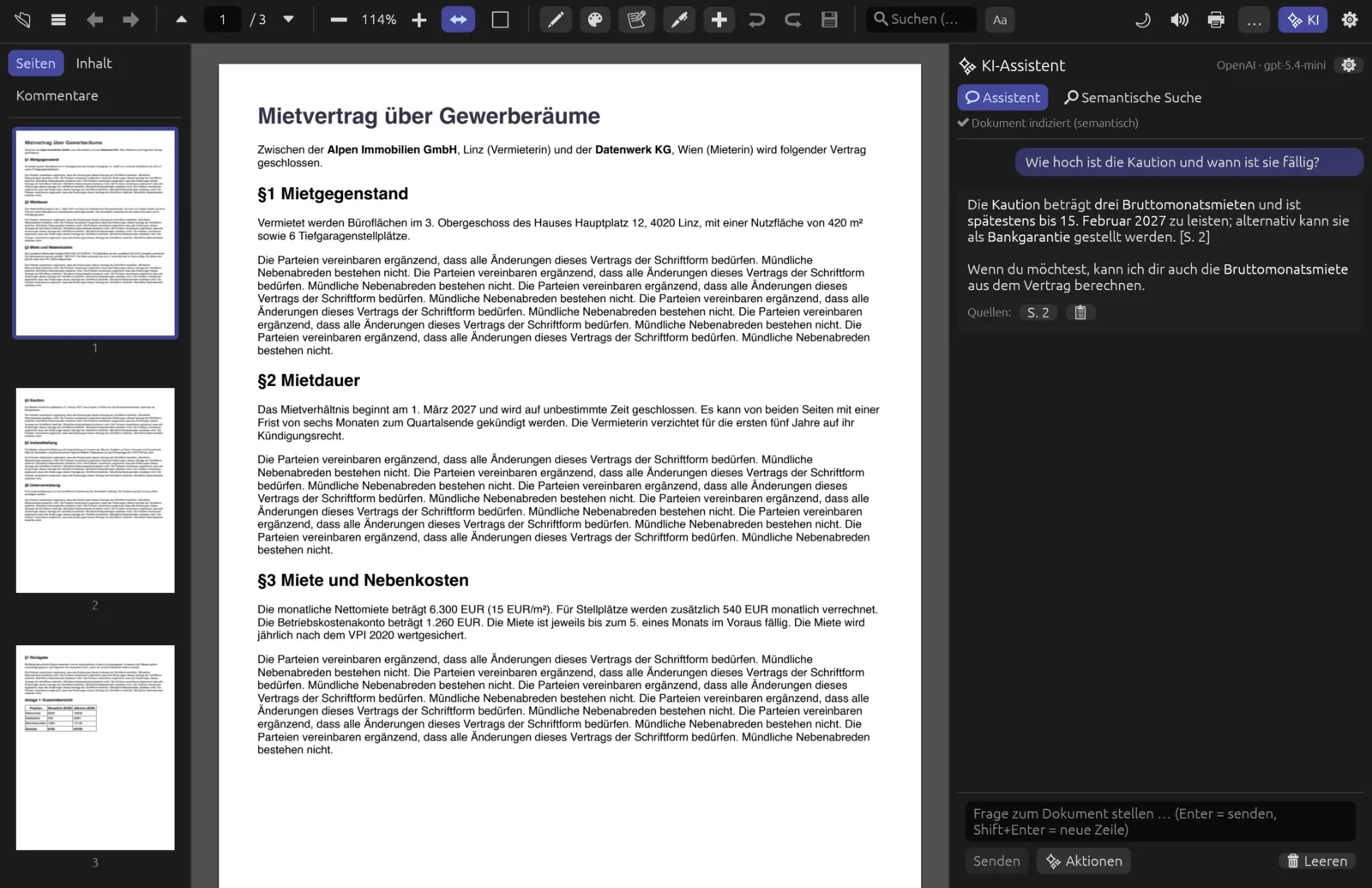
The assistant is instructed to base its answers on the document and to back up every statement with a page reference such as [S. 2] or [S. 3, 7] (“S.” stands for Seite, page). If something is not in the document it should say so and flag general knowledge as such. Below every finished answer, Pagelier collects the cited pages in the Quellen: (sources) row as small buttons S. 1, S. 2 … – click one to jump to that page. 📋 copies the whole answer (as Markdown) to the clipboard.
Language models can be wrong, even when they cite a page. Check important statements – especially amounts, deadlines and legal consequences – by clicking through to the source in the original.
Tables in answers
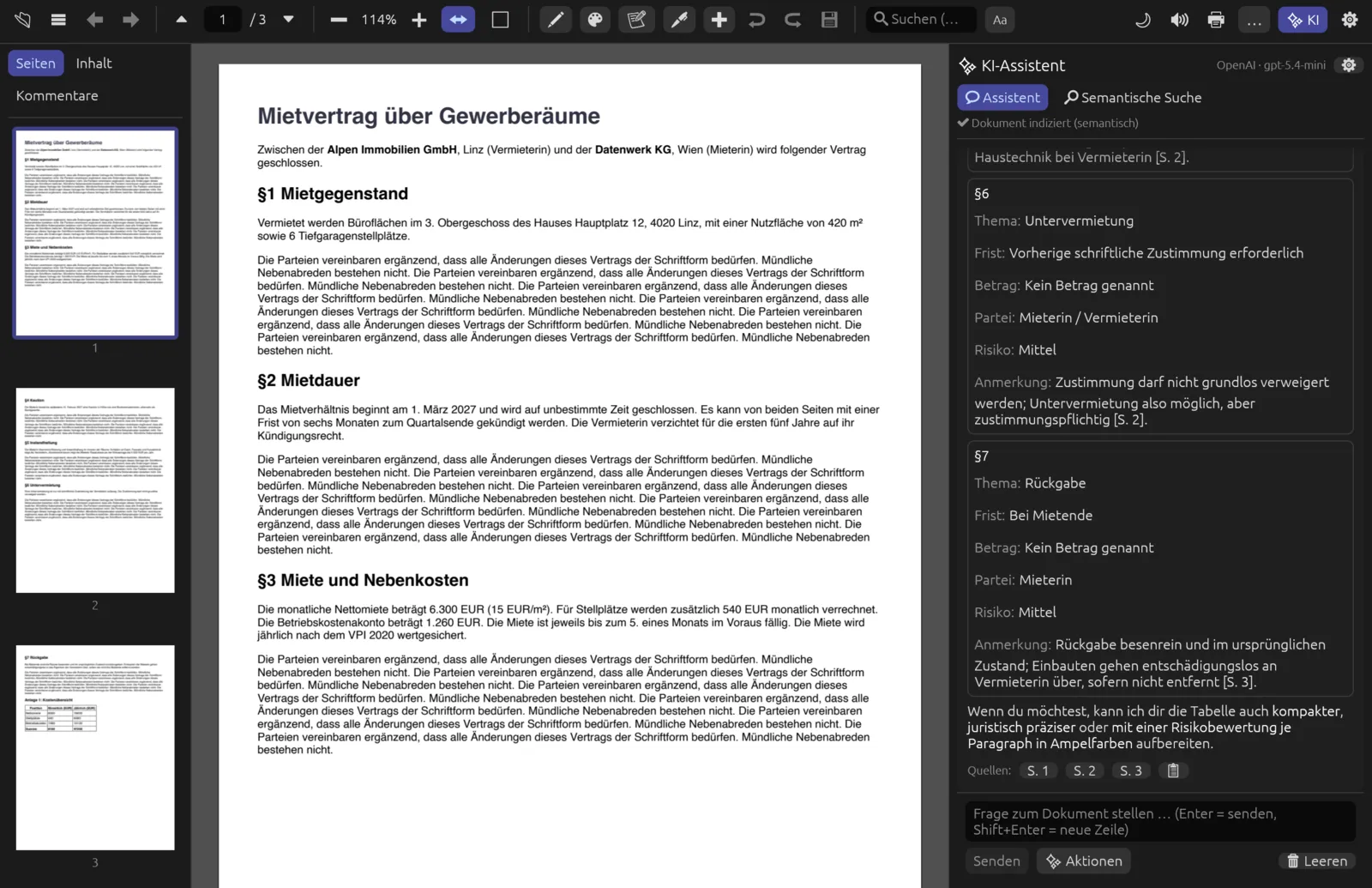
When the assistant answers with a table, Pagelier fits it to the width of the AI panel; long cells wrap. If the table has so many columns that they no longer fit side by side legibly, Pagelier shows each row as a card of its own: the first column as the heading, the other columns below as “column: value”. Make the AI panel wider and the table comes back.
Follow-up questions and history
The assistant remembers the last six messages of the chat, so you can follow up (“and when is it due?”, “explain that more simply”). For short follow-up questions, Pagelier adds the previous question when it looks for matching passages. 🗑 Leeren clears the document's conversation so you can start afresh; the action buttons then reappear.
What the assistant sees of the document
If the whole document fits into the model's memory, the assistant receives the complete text with page markers. With OpenAI that is about 360,000 characters, usually several hundred pages. For longer documents, and with local models and your own server, Pagelier picks the passages from the index that best match your question and sends only those. For whole-document actions it then uses passages spread evenly across the document, so that a summary does not cover only the beginning. The assistant is also told which page you are currently looking at, so “What does this page say?” works.
Actions
For common tasks you do not have to phrase a question. While the conversation is empty the actions appear as large buttons in the panel; after that you reach them via ✨ Aktionen next to Senden. Hover over an action to see a short description.
Whole document
These buttons sit under Ganzes Dokument (whole document).
| Action | Result |
|---|---|
| Zusammenfassen (summarise) | A two-to-three-sentence TL;DR followed by a structured summary per main topic, with page references. |
| Kernaussagen (key points) | The 8 to 15 most important statements, figures, dates and facts as a list, each with a reference. |
| Kritisch prüfen (critical review) | Contradictions, unsupported claims, gaps, risks and unusual or unfavourable clauses, in order of importance – ending with three to five questions to put to the author. |
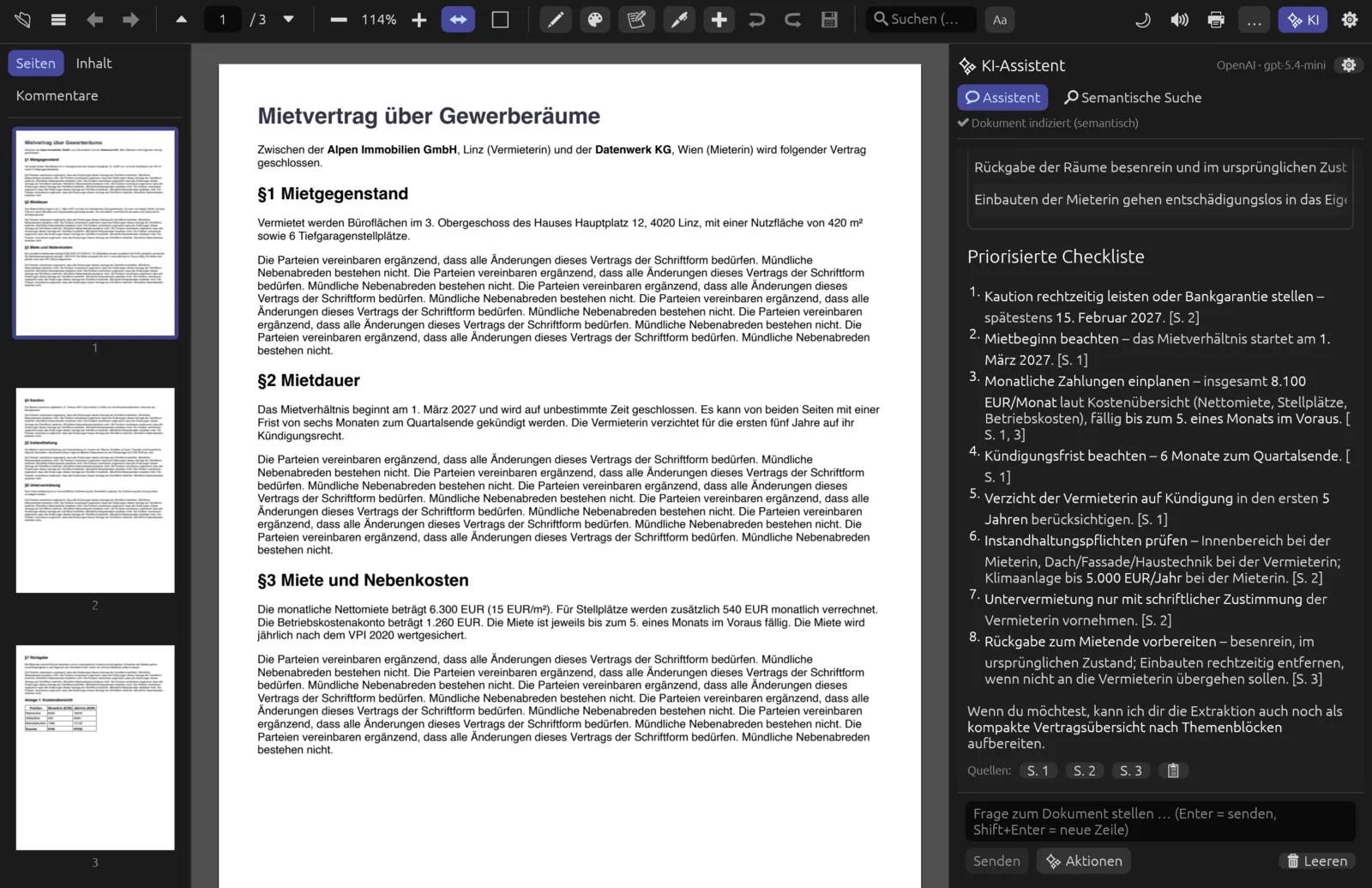
| Fristen & To-dos (deadlines and to-dos) | A table with the columns What, Who, When/deadline, Amount and Page, followed by a prioritised checklist. If there is nothing of the kind, the assistant says so. |
| Glossar (glossary) | Technical terms, abbreviations and proper names in alphabetical order, each with a one-to-two-sentence explanation and page. |
| Lernkarten & Quiz (flashcards and quiz) | Eight flashcards (question → answer) and five multiple-choice questions; the solutions come at the end. |
| Gliederung (outline) | A table of contents as a nested list, with the start page of each section. |
Current page
The page actions, under Aktuelle Seite (inkl. Bildanalyse) (current page, including image analysis), work on the page currently visible in the window. With OpenAI, Pagelier sends an image of the page as well as its text, so the assistant understands charts, figures, formulae and scanned pages.
| Action | Result |
|---|---|
| Seite analysieren (analyse page) | Explains the content of the page, especially charts, graphics, tables and formulae. For scans it also reproduces the recognised text. |
| Tabellen als CSV (tables as CSV) | Every table on the page as a separate CSV block with a header row, numbers without thousands separators. The copy icon on the block lets you paste it into a spreadsheet, for example. |
| Seite übersetzen (translate page) | Translates the whole page in full, keeping headings and lists. For the target language see Answer language. |
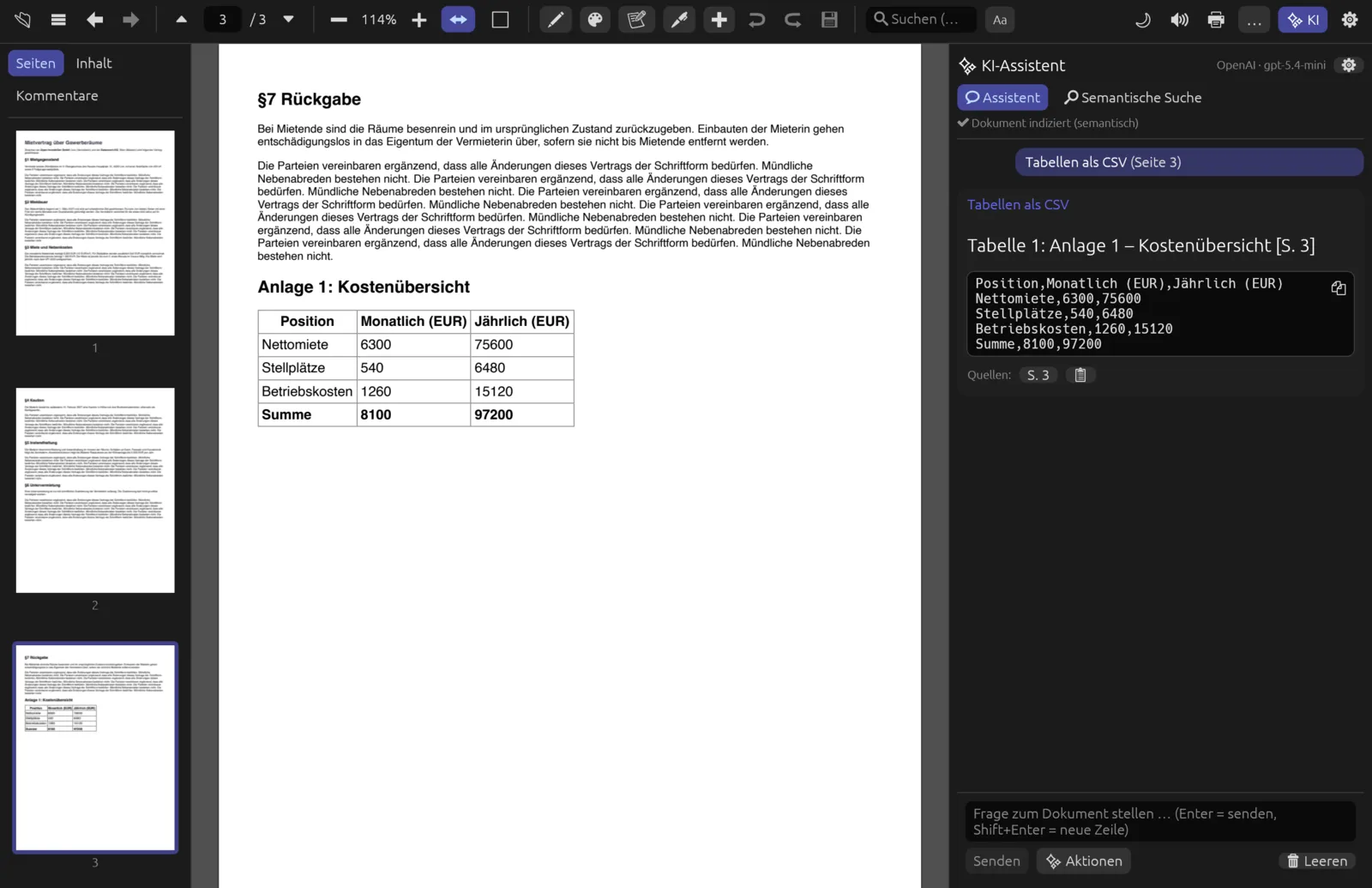
Having a chart or scan explained
- Scroll to the page with the chart so that it is visible in the window.
- In the assistant, click Seite analysieren – or, if there is already a conversation, ✨ Aktionen › Seite analysieren.
- The conversation shows “Seite analysieren (Seite n)” and briefly Rendere Seite für Bildanalyse … (rendering page for image analysis). Then the assistant writes its explanation.
- Ask a follow-up question if you like, such as “Which value rose most year on year?”.
Actions on a selection
When you select text on a page, a small bar appears beneath it. On the left are 📋 Kopieren (copy) and the tools for marking up and redacting (see Markup & Comments); on the right are the AI actions:
| Button | Effect |
|---|---|
| Erklären (explain) | What does the passage mean, which terms matter, and how does it relate to the rest of the page? |
| Übersetzen (translate) | Returns just the translation of the passage. |
| Vereinfachen (simplify) | Rewrites the passage in plain, clear language for a lay reader without dropping any content. |
| Zusammenfassen (summarise) | Summarises the passage in two to four sentences. |
| 💬 Fragen … (ask) | Puts the passage in quotation marks into the assistant's input field. Type your question after it and send it. |
For the four actions, the assistant receives the text of the page as well as the selection, so it understands the passage in context. The conversation then shows, for example, “Erklären: „Die Vermieterin verzichtet …““. Long selections are shortened in that line, but the assistant gets the full text.
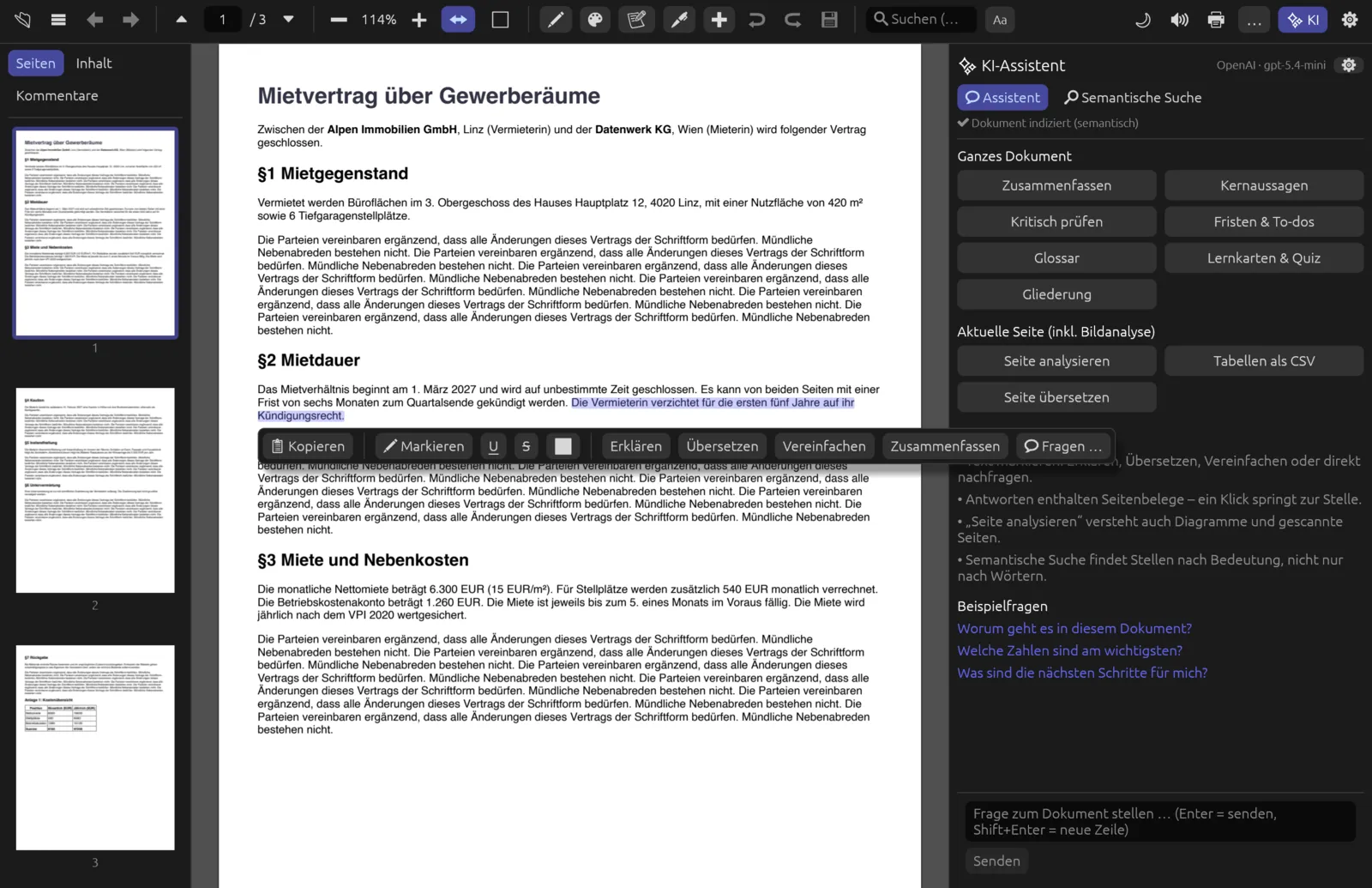
Getting a difficult clause explained
- Drag the mouse across the sentence or paragraph you want to understand. If a tool such as the pen is active, switch it off in the toolbar first.
- In the bar beneath the selection, click Erklären – or Vereinfachen if you just want a clearer version.
- The assistant panel opens (if it was hidden) and shows the explanation with page references.
- To ask your own question about the passage, click 💬 Fragen … instead, add something like “What does this mean for me as the tenant?” in the input field and press Return.
Without a selection Pagelier says “Bitte zuerst Text auf der Seite markieren” (please select text on the page first). On scanned pages without a text layer you cannot select anything – make them searchable first with text recognition (OCR), or use Seite analysieren.
Semantic search
The normal search (⌘ F, see Interface & Reading) finds words exactly as you type them. Semantic search finds passages by their meaning: “Kündigung” (notice of termination) also finds “Vertragsbeendigung” (ending of the contract), and you can type a whole question.
Searching by meaning
- In the AI assistant, switch to the 🔎 Semantische Suche tab.
- Type a term or question into the field Wonach suchst du? (what are you looking for?), e.g. “Who pays for repairs to the building?”.
- Press Return or click Suchen (search).
- Pagelier lists up to twelve results, each with its page, a percentage for the similarity and an excerpt. Click a result to jump to the page.
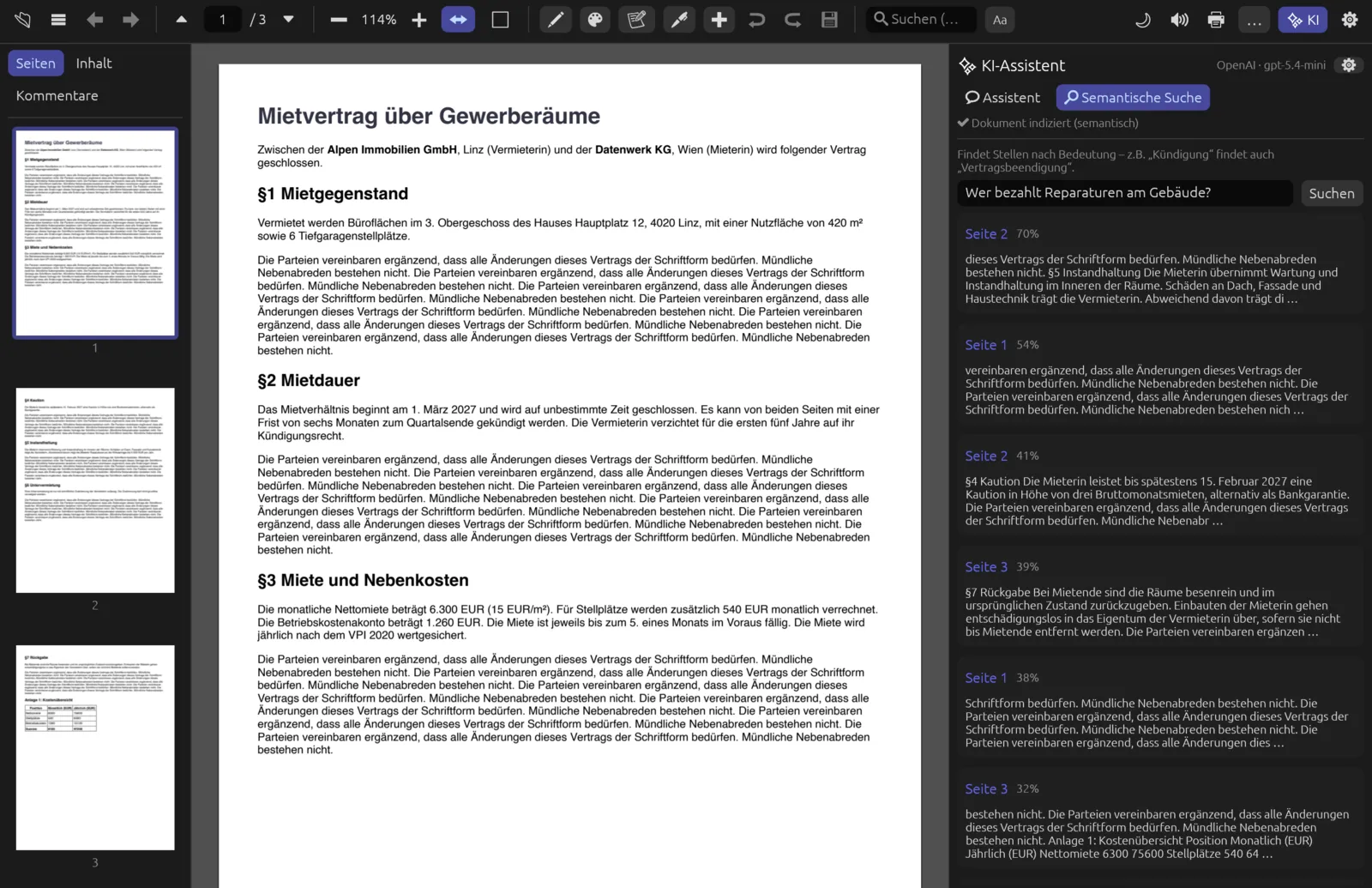
The percentage measures similarity; it is not a probability. Only compare it within one list of results.
The index
After opening a file, Pagelier reads the text of every page and splits it into short passages. From these it immediately builds a keyword index – so chat and search work within a few seconds. If an embedding model is available, Pagelier also builds a semantic index in the background, which records the meaning of each passage as a vector of numbers. The status line then changes from “(Stichworte)” to “(semantisch)”. The semantic index is cached, so it is ready immediately the next time you open the same file.
You choose which embedding model does the work under Semantische Suche (Embeddings): OpenAI, the local model Multilingual-E5 Small, or Aus (nur Stichworte) (off, keywords only). Without embeddings, semantic search only finds passages containing matching words. If building the index fails, for instance without internet, the status line shows “Semantische Suche nicht verfügbar” (semantic search not available) – the keyword index stays active.
Pagelier cannot index scanned PDFs without a text layer and tells you so when you open one. After text recognition (OCR) the assistant and search work normally.
Answer language
Under (Settings › Answers › Answer language) you choose the language the assistant writes in: Deutsch (the default), English, Français, Español, Italiano, Nederlands or Sprache des Dokuments (language of the document). If you explicitly ask for another language in a question (“answer in English”), that takes priority.
When translating (Seite übersetzen and Übersetzen on a selection), the answer language is the target language – with one exception: if the text is already in that language, or you have chosen Sprache des Dokuments, Pagelier translates into English, and English texts into German. So with the answer language set to German, the assistant translates a German contract into English. For very short selections (a single word), Pagelier detects the source language from the text of the page.
Privacy
What leaves your computer depends on the provider:
| Setting | What is sent |
|---|---|
| OpenAI (Cloud) | With every question and action, the document text (in full or in extracts) and your question go to OpenAI; for page actions an image of the page as well. For the semantic index, the text passages are also sent to OpenAI if OpenAI computes the embeddings. |
| Lokal (offline, integriert) | The chat stays on your computer. For the semantic index: if the local model E5 does the work, everything stays local (see the warning below). |
| Eigener Server | Text and page images go to the server URL you entered – with localhost, they never leave your machine. |
When Semantische Suche (Embeddings) is set to Automatisch (automatic), text passages only go to OpenAI if the chat also runs through OpenAI. With “Lokal” or your own server, Pagelier computes the embeddings with Multilingual-E5 on your computer. If E5 is not installed, the AI searches by keywords only until you download it.
- The API key is stored only in the settings on your computer; on macOS and Linux the file is readable only by you (permissions 600).
- The conversation is not saved. It lasts only as long as the document is open.
- Where settings, models and the index cache are stored is described in the Settings chapter.