Getting started
In this chapter you install Pagelier, open your first PDF and learn how to work with several documents in tabs, save changes, print and open password-protected files.
Installation
Pagelier runs on macOS, Windows and Linux, on both Intel/AMD and ARM processors. Download the current version free of charge from the website's home page. The PDF engine, PDFium, is included in every package.
| System | Package | How to install |
|---|---|---|
| macOS (11 or later) | DMG (Universal) or ZIP for Apple Silicon or Intel | Open the DMG and drag Pagelier into the Applications folder. The app is notarised by Apple and starts without a warning. Pagelier registers itself as a PDF viewer, so it also appears under “Open With”. |
| Windows (x64 and ARM64) | ZIP | Unzip the archive and start Pagelier.exe. If SmartScreen asks on first launch, click “More info” and then “Run anyway”. |
| Linux (x64 and ARM64) | tar.gz | Unpack the archive and run ./pagelier. ./install.sh installs Pagelier for your user into ~/.local and adds it to the application menu; after that, pagelier also starts it from a terminal. |
On Windows computers with an ARM64 processor the local chat models are not available. There the AI assistant works with OpenAI or your own server – see AI assistant.
The licences of all bundled components are listed in THIRD-PARTY-NOTICES.txt, which ships in every package.
First launch
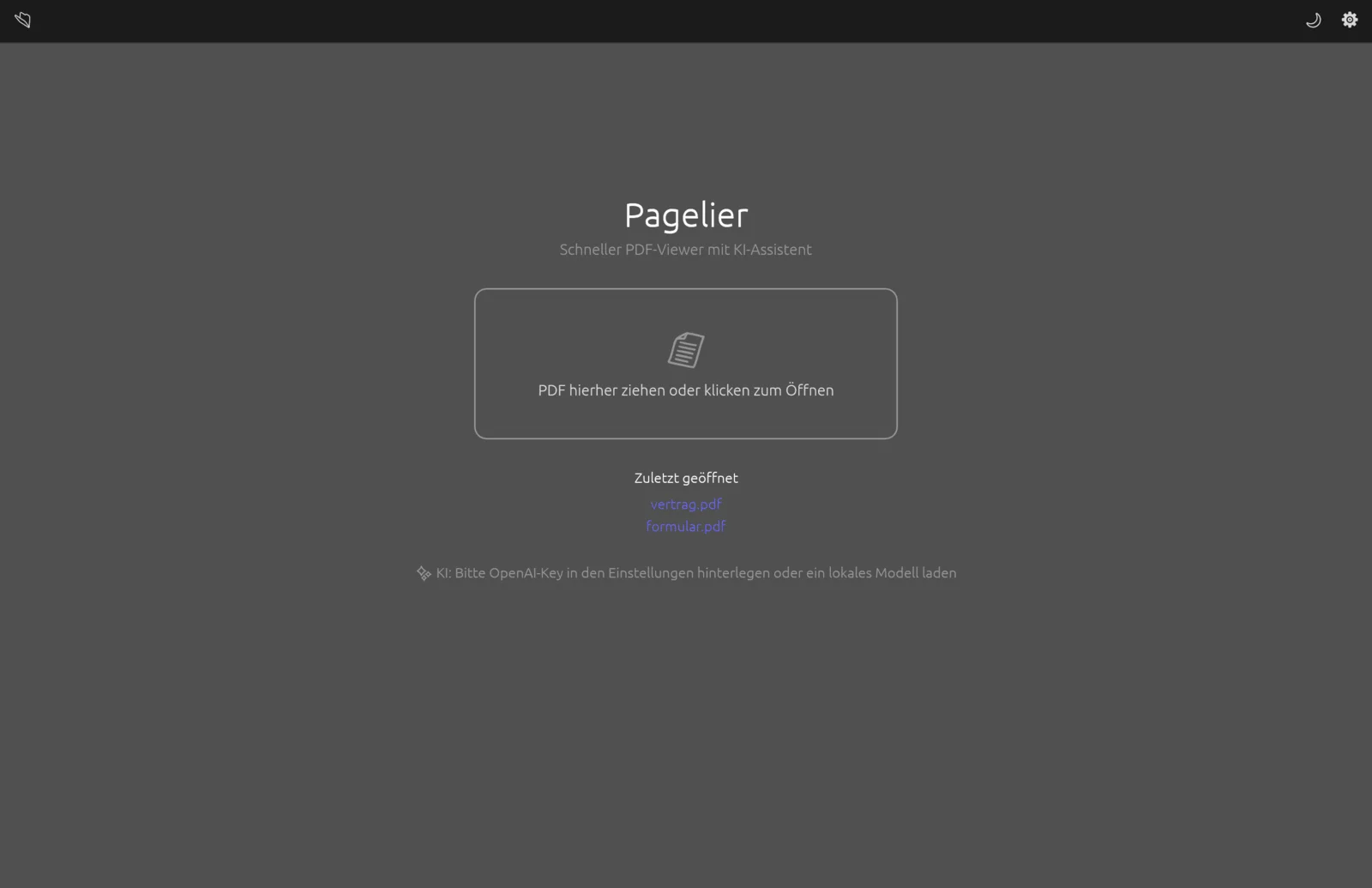
If you start Pagelier without a document, you see the start screen. It has three parts:
- the large area PDF hierher ziehen oder klicken zum Öffnen (drag a PDF here or click to open),
- the list Zuletzt geöffnet (recently opened) with up to eight files that still exist,
- a status line for the AI assistant, such as “KI bereit: OpenAI …” (AI ready) or a hint to enter an OpenAI key in the settings or load a local model. Clicking it opens the settings.
At the top left is the 📂 button (open); at the top right are 🌙 for the dark reading mode and ⚙ for the settings. All other tools appear once a document is open.
The AI assistant is optional. Reading, searching, commenting and editing all work without a key and without a model.
Opening a PDF
There are several ways to open a PDF:
- File dialog: click 📂 in the toolbar, click the area on the start screen, or press ⌘ O.
- Drag and drop: drag a PDF from Finder or Explorer onto the Pagelier window. If you drop an Office file instead, Pagelier converts it to PDF (LibreOffice must be installed); PNG and JPEG images are combined into a new PDF. See Convert & export.
- Recently opened: click a file name on the start screen. Hovering over it shows the full path.
- From the system: via “Open With”, or by double-clicking if Pagelier is your default PDF app. On Linux,
pagelier file.pdfstarts straight into the file.
Each document opens in its own tab to the right of the active one. If the file is already open in a tab, Pagelier simply switches to it instead of loading it twice. If a file cannot be opened – a damaged file, say – Pagelier reports the error at the bottom of the window, and the document you had open stays as it was.
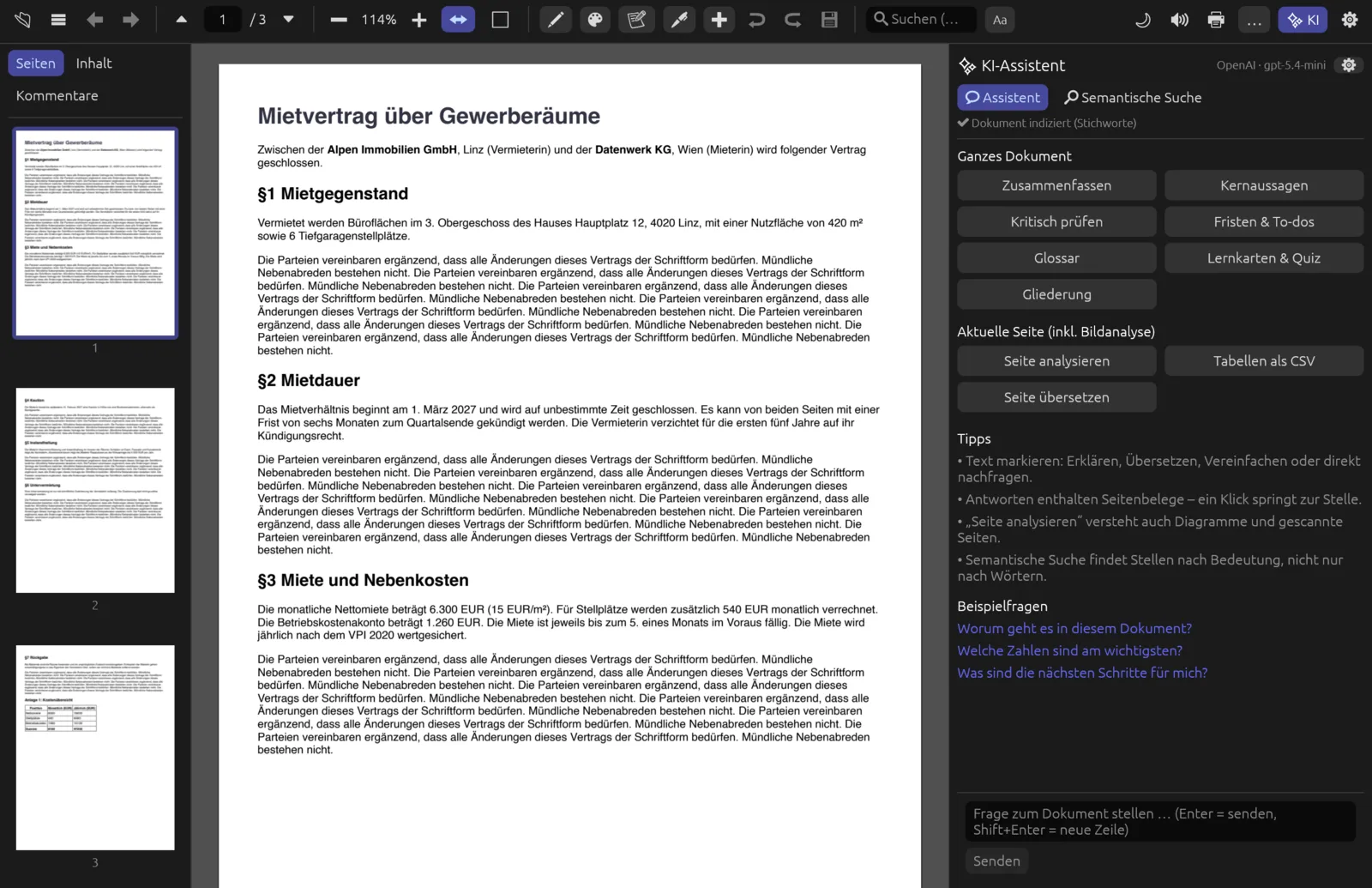
After opening, Pagelier reads the text of all pages in the background. As soon as the AI panel shows Dokument indiziert (document indexed), search, text selection and the assistant are ready.
Open a PDF and page through it
- Press ⌘ O and choose a PDF in the file dialog.
- The first page appears at page width. Scroll with the mouse wheel or trackpad, or turn pages with ← and →.
- Click a thumbnail in the sidebar on the left to jump straight to that page.
- To go to a particular page, click the page field in the toolbar, type the number and press ↩.
Working with several documents
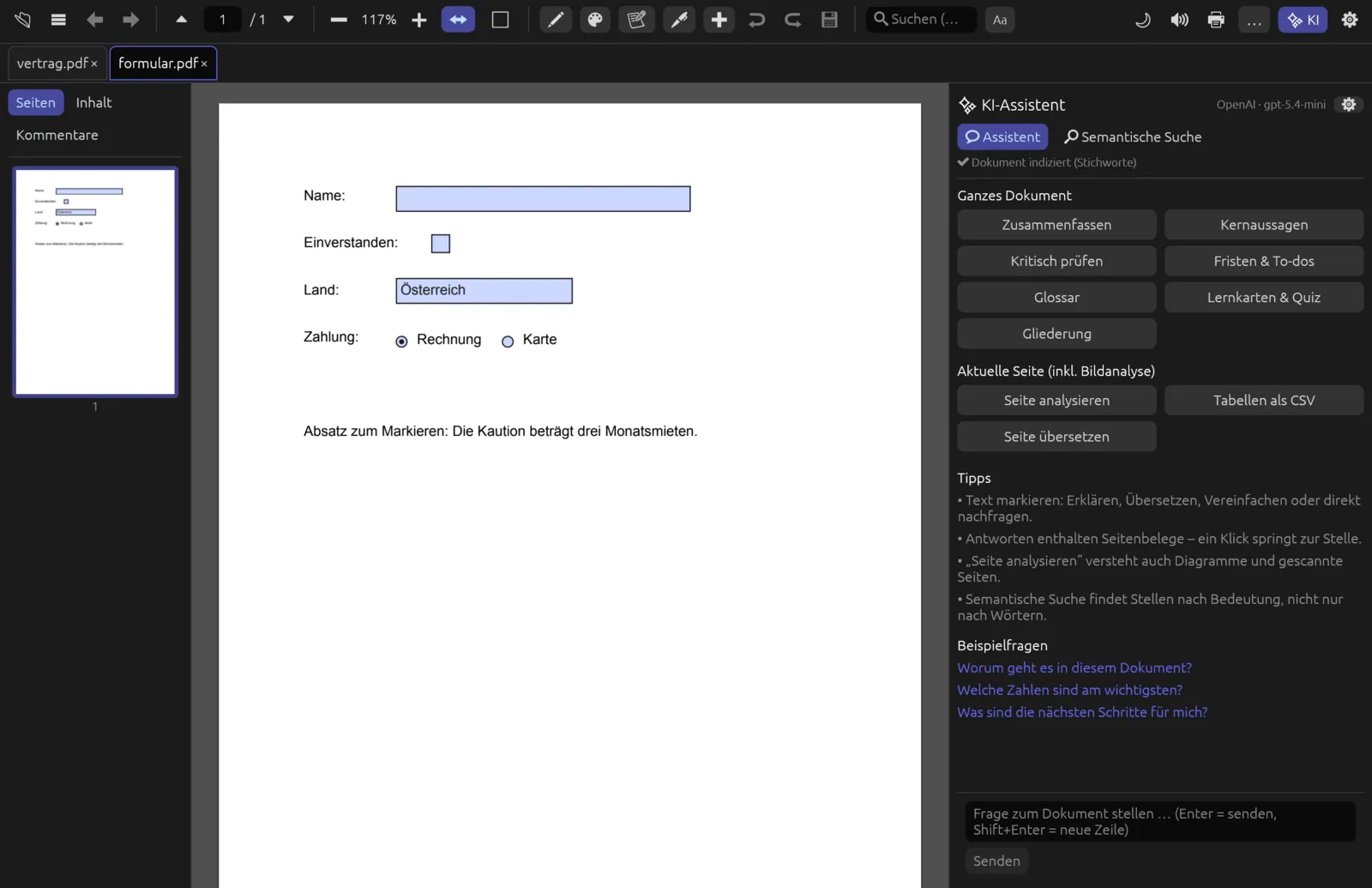
As soon as two or more documents are open, a tab bar appears below the toolbar. The active tab has a coloured outline. A dot • in front of the name means there are unsaved changes.
| Action | How |
|---|---|
| Switch tab | Click its name; ⌃ Tab or ⌃ ⇧ Tab; ⌘ ⇧ ] or ⌘ ⇧ [ |
| Go to tab 1–8 | ⌘ 1 to ⌘ 8; ⌘ 9 goes to the last tab |
| Close tab | × next to the name, a middle click on the tab, or ⌘ W |
When you close the last tab, Pagelier returns to the start screen.
Saving
All changes – highlights, notes, form entries, edits, reordered pages – are first applied to the open document. Only when you save are they written to the file.
- Save (💾 in the toolbar or ⌘ S) overwrites the open file. The button is only active when there are unsaved changes. “Gespeichert” (saved) briefly appears at the bottom of the window.
- Save as ( or ⌘ ⇧ S) writes a new file. The tab then carries on with the new file.
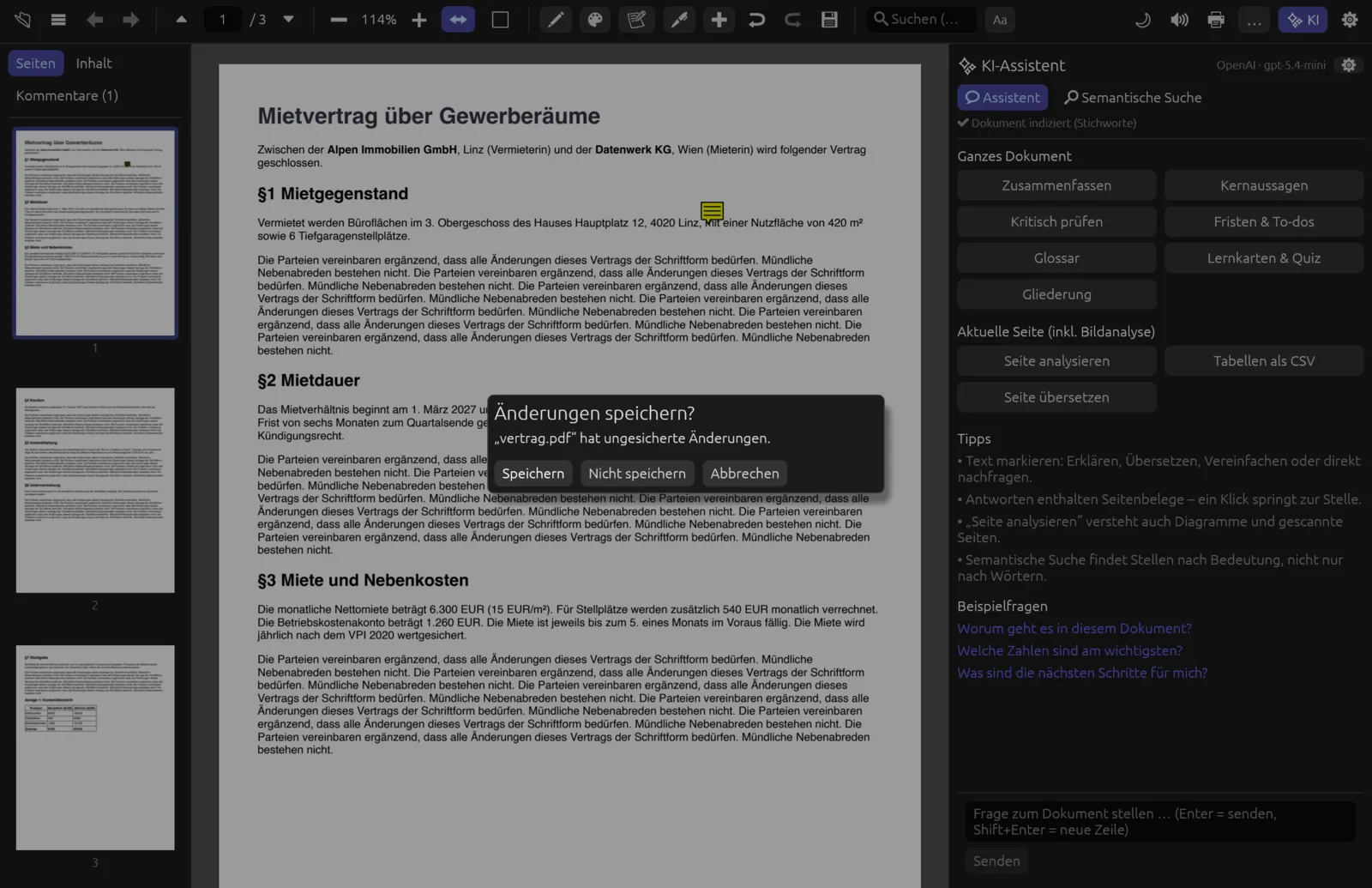
If you close a tab, leave a document with unsaved changes or quit Pagelier, it asks Änderungen speichern? (save changes?): Speichern (save), Nicht speichern (don't save) or Abbrechen (cancel). When quitting, Pagelier goes through every tab with unsaved changes in turn.
Almost everything can be undone before saving with ⌘ Z (↩) and redone with ⌘ ⇧ Z (↪).
Save an edited version as a copy
- Make your changes, for example a note or a highlight. A dot appears before the file name in the tab, and 💾 becomes active.
- Click … in the toolbar and choose 💾 Speichern unter … (save as), or press ⌘ ⇧ S.
- Enter a new name in the file dialog. If you leave out the extension, Pagelier adds
.pdf. - The original file stays unchanged; the tab now shows the new file.
Printing
Click 🖶 in the toolbar or press ⌘ P. Pagelier uses each system's own way of printing:
- macOS: the familiar system print dialog with preview, page selection and “Save as PDF”.
- Windows: the Windows print dialog.
- Linux: a small dialog of its own, 🖶 Drucken (print), with Drucker (printer), Exemplare (copies, 1–99) and Seiten (pages): Alle (all) or a range such as “1-3, 5”. Printing goes through CUPS.
If you have unsaved changes, Pagelier prints the current state – there is no need to save first.
Opening password-protected PDFs
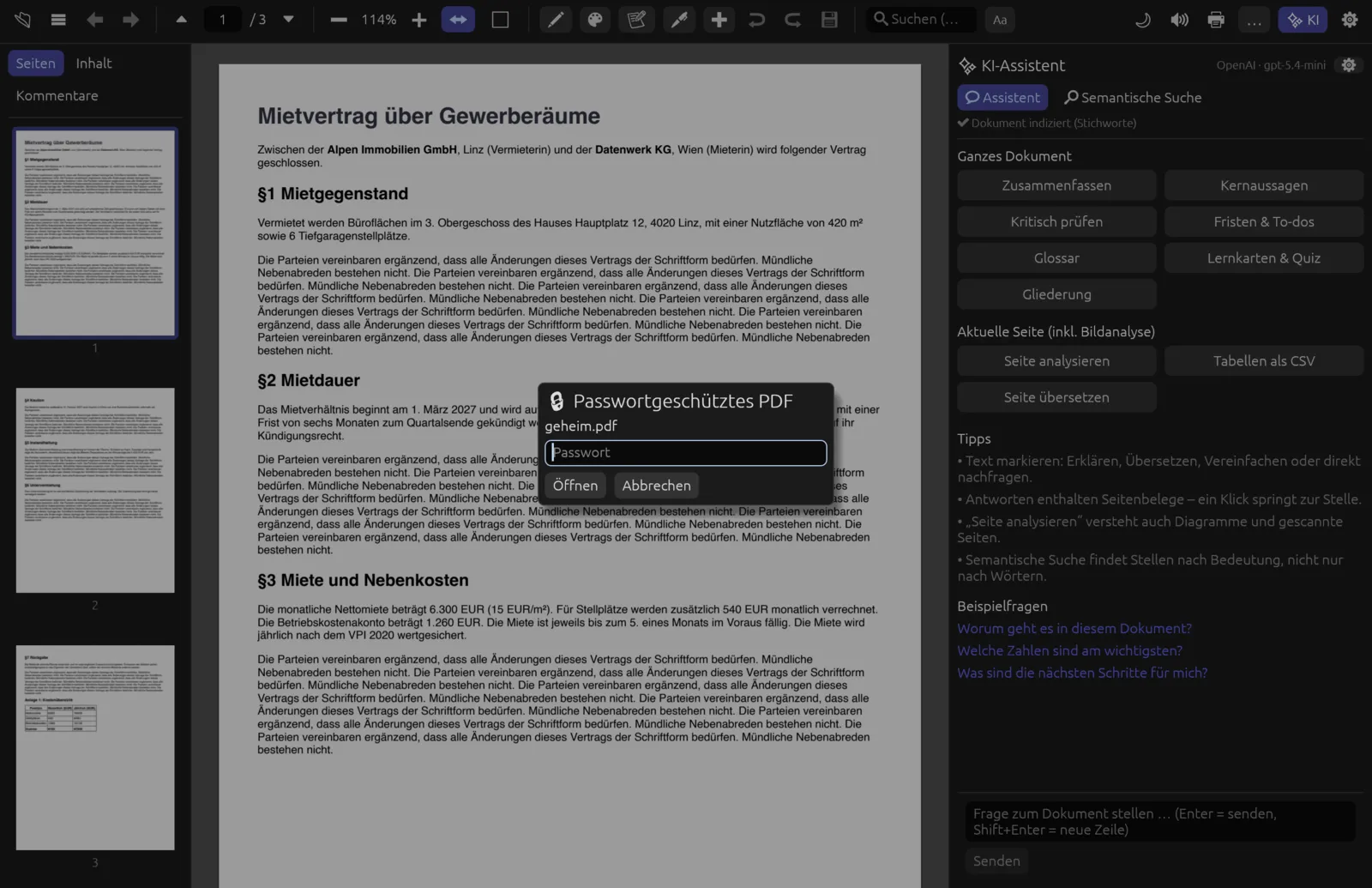
If a PDF is protected with an open password, Pagelier asks for it in the dialog 🔒 Passwortgeschütztes PDF (password-protected PDF). Type the password and press ↩ or click Öffnen (open). If it is wrong, Falsches Passwort (wrong password) appears and you can try again. Abbrechen (cancel) closes the dialog; the document you had open before stays open.
Pagelier only keeps the password while the document is open. How to protect a PDF yourself or remove protection is covered in Redact, protect & sign.
Open a protected PDF
- Open the file as usual, for example with ⌘ O or by dragging it onto the window.
- The dialog 🔒 Passwortgeschütztes PDF shows the file name. Type the password – the cursor is already in the field.
- Press ↩. The document opens in a new tab.
The next chapter, Interface & reading, explains the interface in detail.