Check & Compare
Is the PDF accessible? Is it fit for the archive or the print shop? And what has changed since the last version? The check tools answer the first questions in seconds and fix simple shortcomings with a click; the comparison shows every text change right on the page – with an AI summary if you want one.
Checking a document
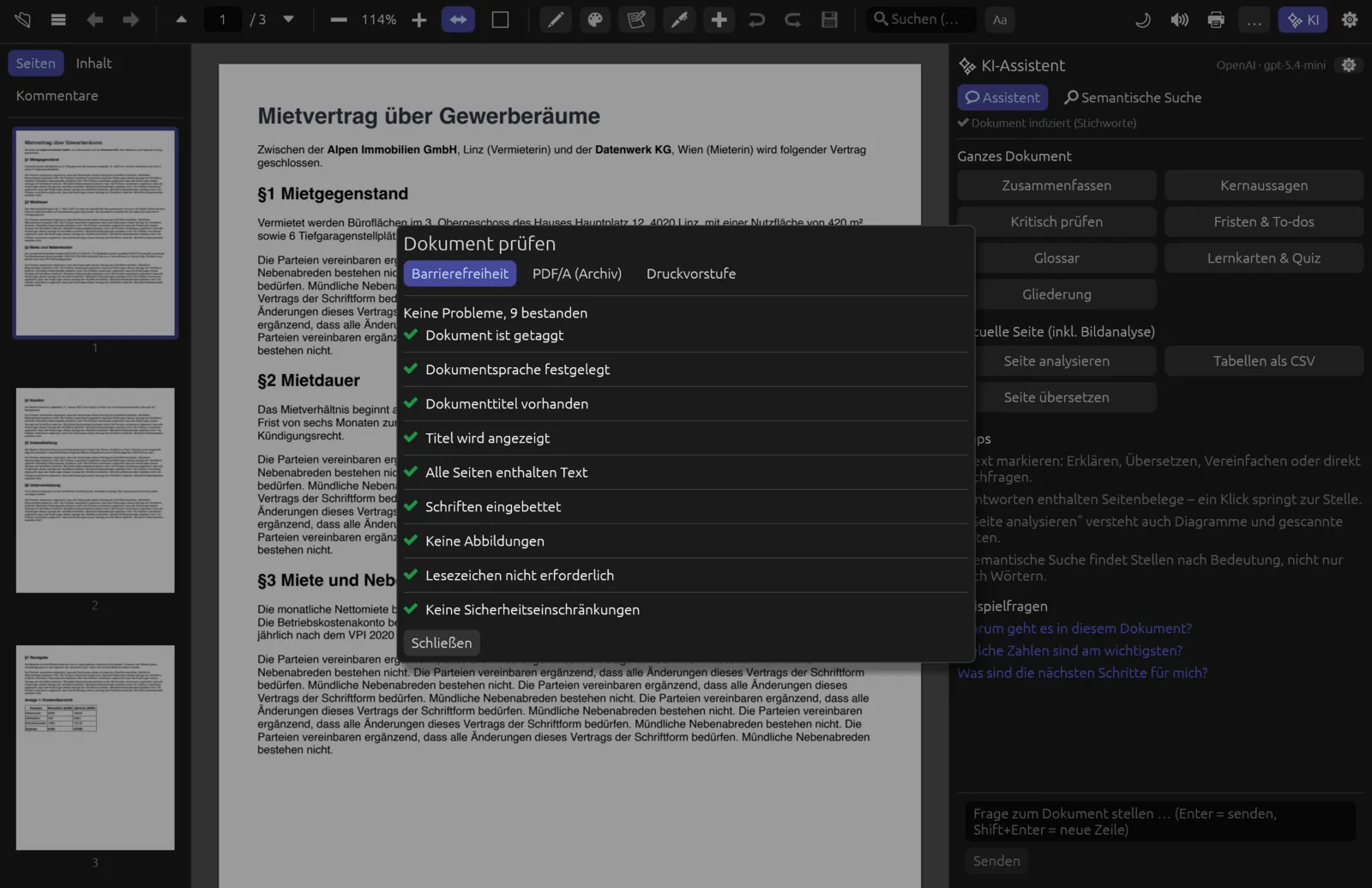
(Check and compare › Check document) opens the Dokument prüfen dialog and immediately starts the accessibility check. At the top you switch between three check profiles:
| Profile | What is checked (selection) |
|---|---|
| Barrierefreiheit (Accessibility) | Tags (structure tree), document language, title and whether it is displayed, real text on every page, embedded fonts, alternative text for figures, bookmarks (from 21 pages), descriptions of form fields and links, tab order, security settings. |
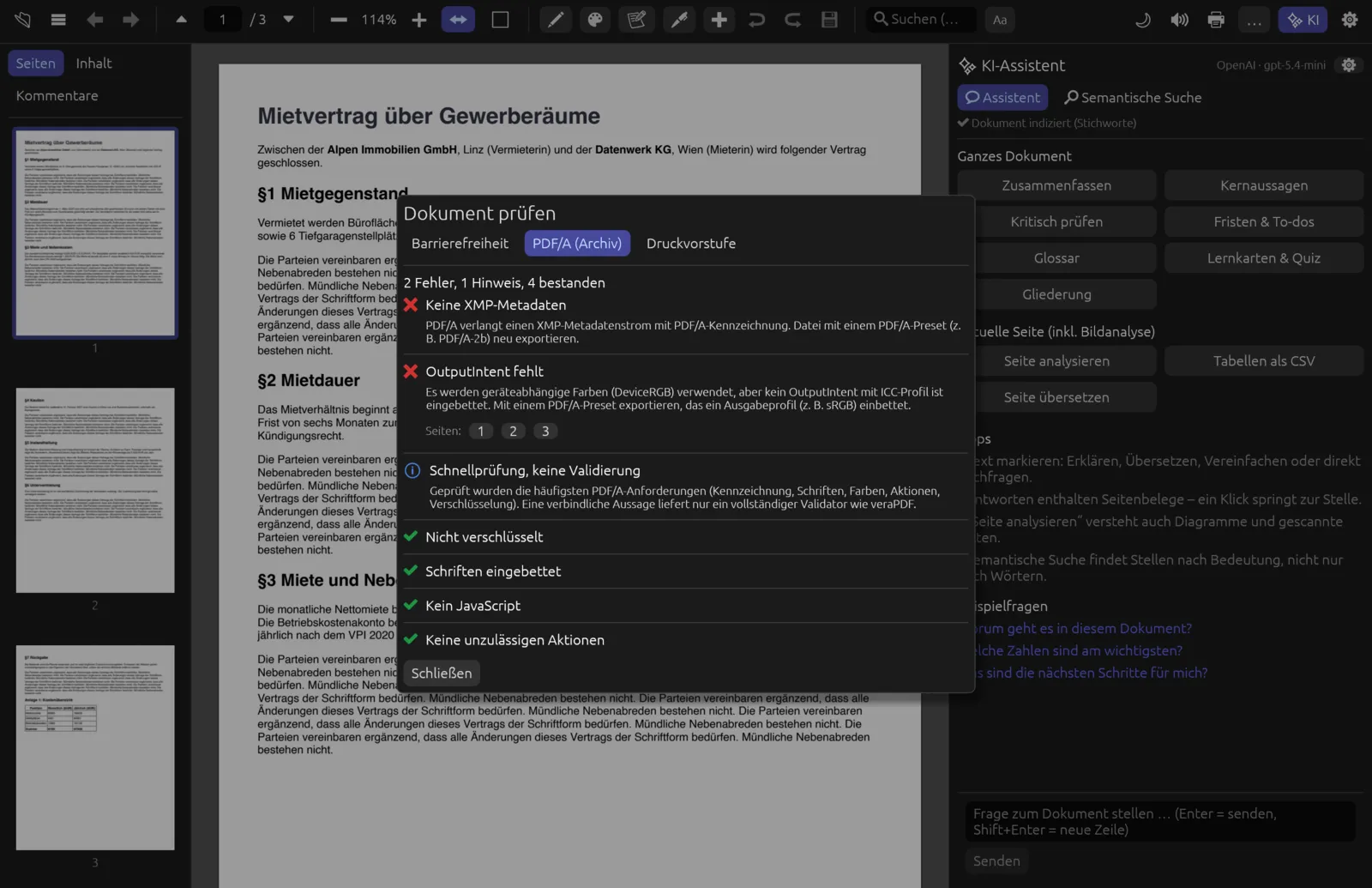
| PDF/A (Archiv) (Archive) | XMP metadata and PDF/A identification, encryption, embedded fonts, JavaScript and forbidden actions, colour spaces and OutputIntent, matching titles in Info and XMP. |
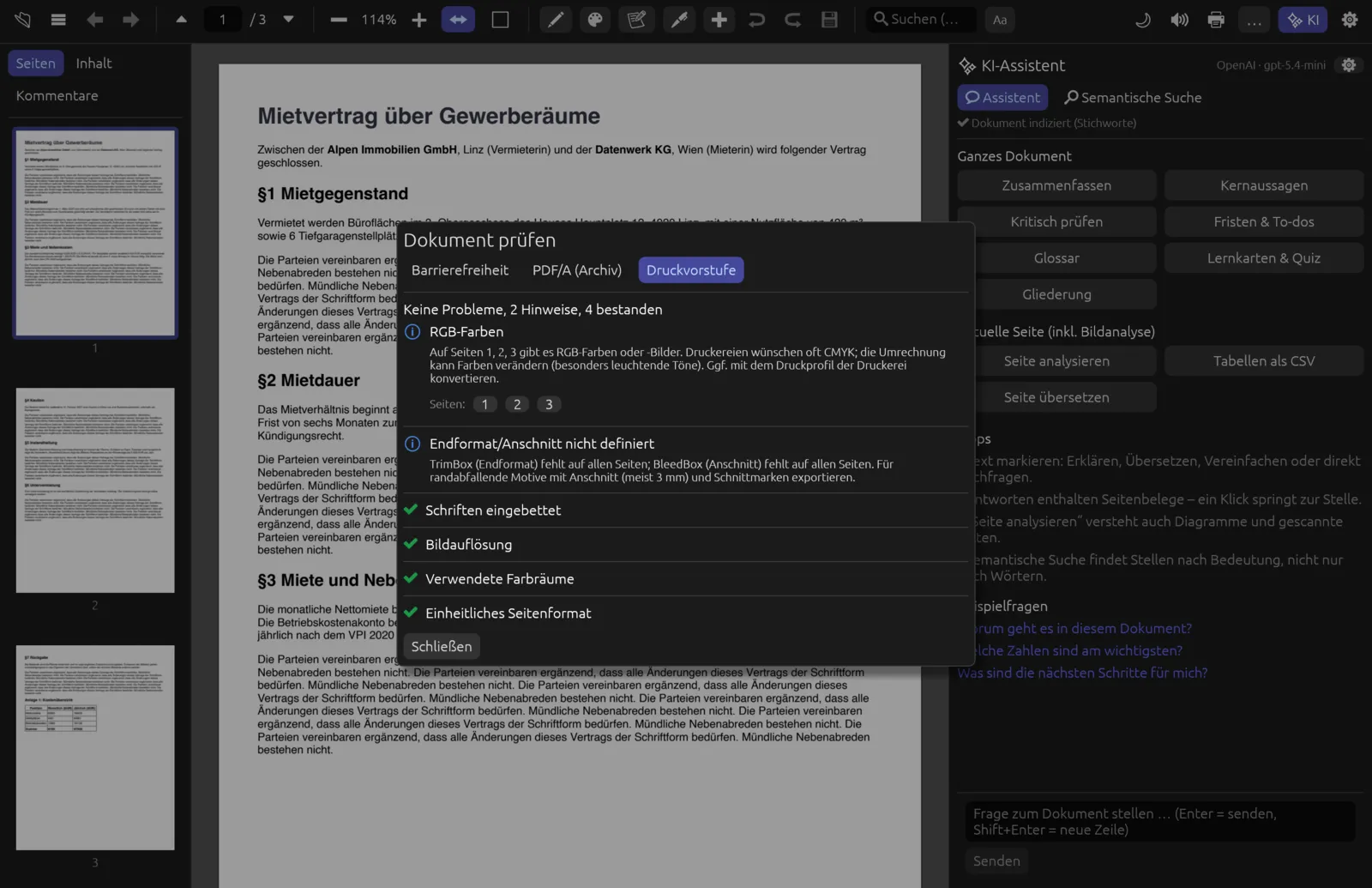
| Druckvorstufe (Prepress) | Embedded fonts, image resolution (below 150 or 300 ppi), colour spaces (RGB, spot colours), trim and bleed (TrimBox/BleedBox), uniform page size, transparency. |
Above the list is a summary, e.g. “2 Fehler, 1 Hinweis, 4 bestanden” (2 errors, 1 note, 4 passed) or “Keine Probleme, 9 bestanden” (no problems, 9 passed). Below it come the findings, most serious first:
| Symbol | Meaning |
|---|---|
| ✖ (red) | Error – violates a requirement of the profile. |
| ⚠ (orange) | Warning – should be fixed. |
| ℹ (blue) | Note – worth considering, not necessarily a problem. |
| ✔ (green) | Passed. |
Each finding explains in a sentence what’s missing and how to fix it (the texts are in German). If it concerns particular pages, small page buttons follow (Seiten: 1 2 3) – click one to jump to that page. Schließen (Close) or Esc closes the dialog.
One-click fixes
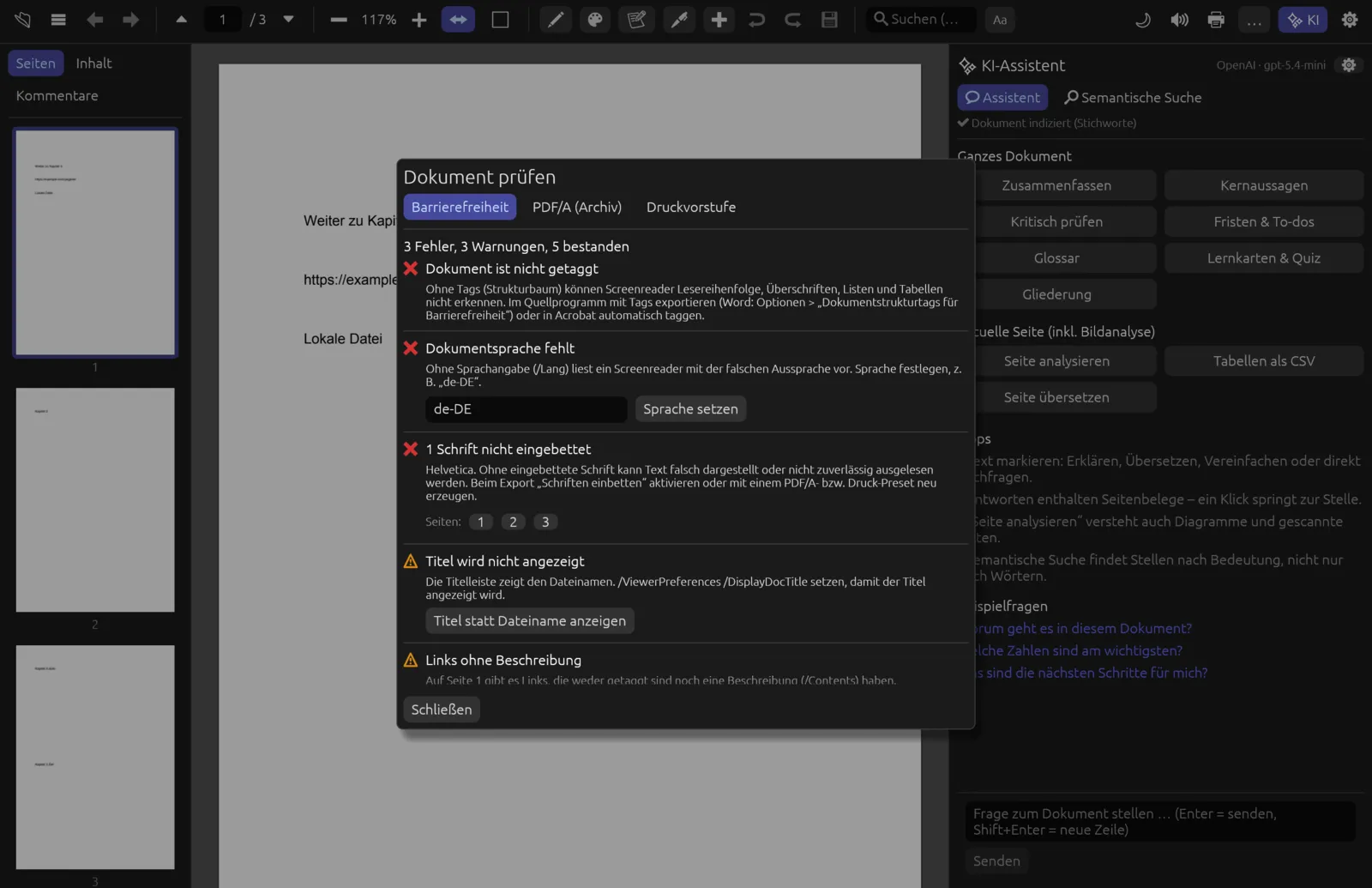
Pagelier can fix some shortcomings itself. For these findings a button appears below the description:
| Button | Effect |
|---|---|
| Titel setzen (Set title) | Sets the document title (in the Info dictionary and the XMP metadata). The field in front is pre-filled with the current title or file name. |
| Sprache setzen (Set language) | Sets the document language; pre-filled with “de-DE”, which you can change to e.g. “en-GB”. |
| Titel statt Dateiname anzeigen (Show title instead of file name) | Makes PDF programs show the title rather than the file name in the title bar. |
| Tab-Reihenfolge festlegen (Set tab order) | Pages with links, fields or comments follow the document structure when tabbing. |
| Als getaggt kennzeichnen (Mark as tagged) | Adds the missing flag when tags exist but aren’t declared. |
Make a PDF more accessible
- Choose . The Barrierefreiheit profile is selected.
- Read the findings from top to bottom. For Dokumentsprache fehlt (document language missing), check the suggested code and click Sprache setzen.
- Pagelier reports “Korrigiert – Speichern nicht vergessen” (fixed – don’t forget to save) and checks again straight away; the finding is now listed as passed.
- Repeat for the other buttons, such as Titel setzen.
- Fix findings without a button (e.g. “Dokument ist nicht getaggt” – document not tagged – or missing alternative text) in the program that created the PDF; the description tells you how.
- Close the dialog and save with ⌘ S.
Like any change, fixes can be undone with ⌘ Z. For password-protected PDFs you need to remove the protection first (see Removing protection).
Limits of the checks
The check tools are quick checks. They read what can be reliably determined from the file structure, but they don’t replace full standards validation:
- For a binding verdict on PDF/A you need a validator such as veraPDF, for PDF/UA something like PAC. Pagelier says so itself in the note “Schnellprüfung, keine Validierung” (quick check, not validation).
- Whether tags are correct in substance (reading order, headings, tables) or alternative texts make sense can only be checked by hand.
- Pagelier can’t tag documents itself, embed fonts afterwards or convert colours to CMYK – export the PDF again from the original program for that.
- In very large documents, at most 2000 pages are examined.
Comparing two versions
When a contract comes back in a new version, the comparison shows every changed word. Open the new version and compare it with the older one.
Compare a new and an old version
- Open the new version.
- Choose (Compare with another version).
- In the Ältere Fassung zum Vergleich wählen (choose older version) dialog, pick the old PDF. Pagelier reports e.g. “2 Änderung(en) gefunden” (2 changes found).
- The sidebar switches to the Vergleich (2) (Comparison) tab. Click a change to jump to its page.
- When you’re done, click Vergleich beenden (End comparison).
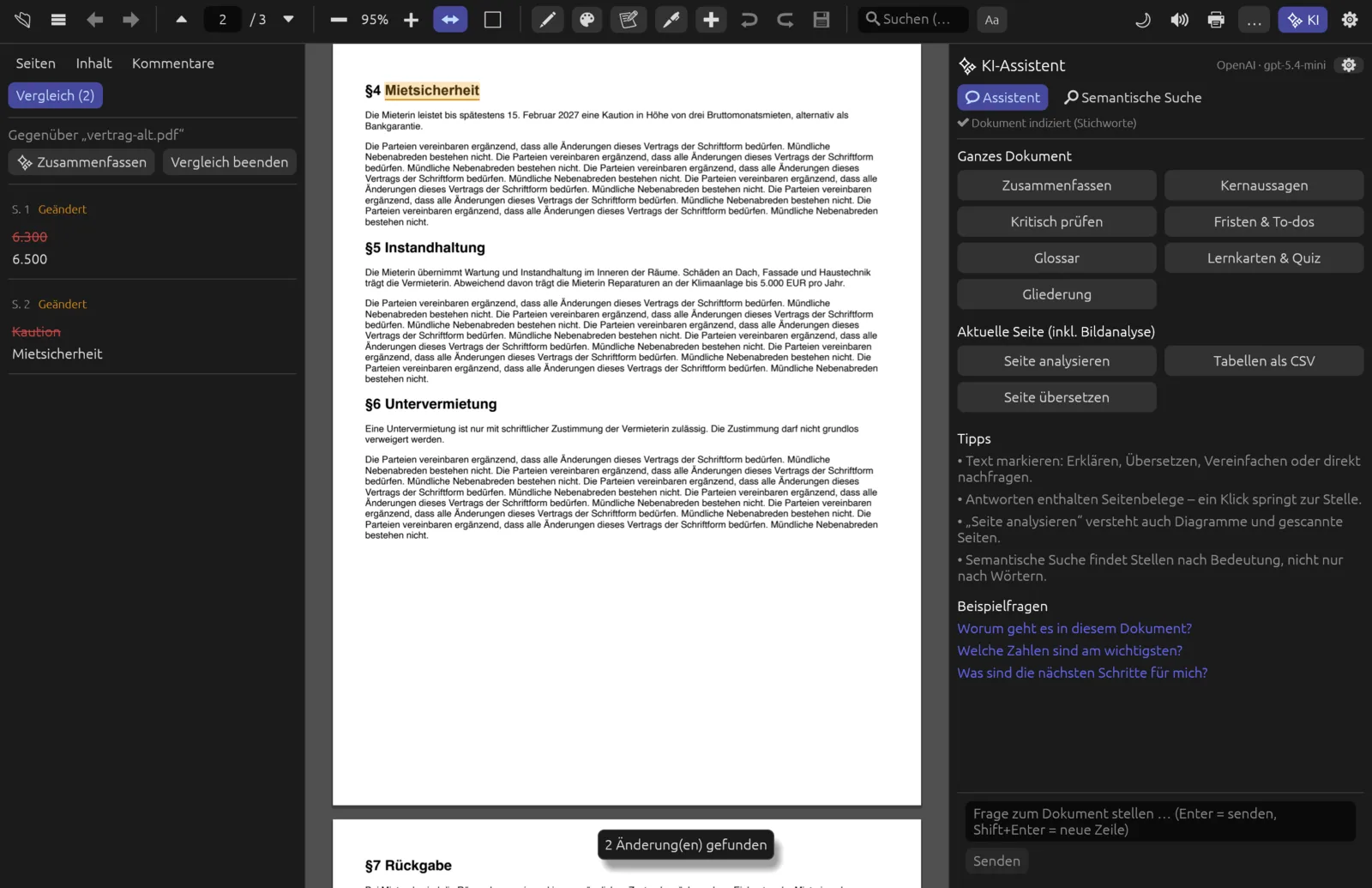
Each entry shows the page (e.g. S. 2) and the kind of change. On the page itself the passages are highlighted in colour:
| Kind | In the list | On the page |
|---|---|---|
| Eingefügt (Inserted) | green, new text | green background, underlined |
| Gelöscht (Deleted) | red, old text struck through | red vertical bar where the text used to be |
| Geändert (Changed) | orange, old text struck through, new text below | orange background, underlined |
Only the text is compared, word by word. Changes to images, fonts, colours or layout are not detected, and moved paragraphs appear as deleted and inserted. Prepare scanned PDFs without text with text recognition first. If the older PDF is password-protected, Pagelier reports “Die andere PDF ist passwortgeschützt” (the other PDF is password-protected).
AI summary of the changes
With many changes, an overview helps: ✨ Zusammenfassen (Summarise) at the top of the Vergleich tab sends the list of changes to the AI assistant. It briefly summarises the changes that matter in substance and mentions typos and formatting only in passing. The answer appears in the AI panel, with page references you can click.
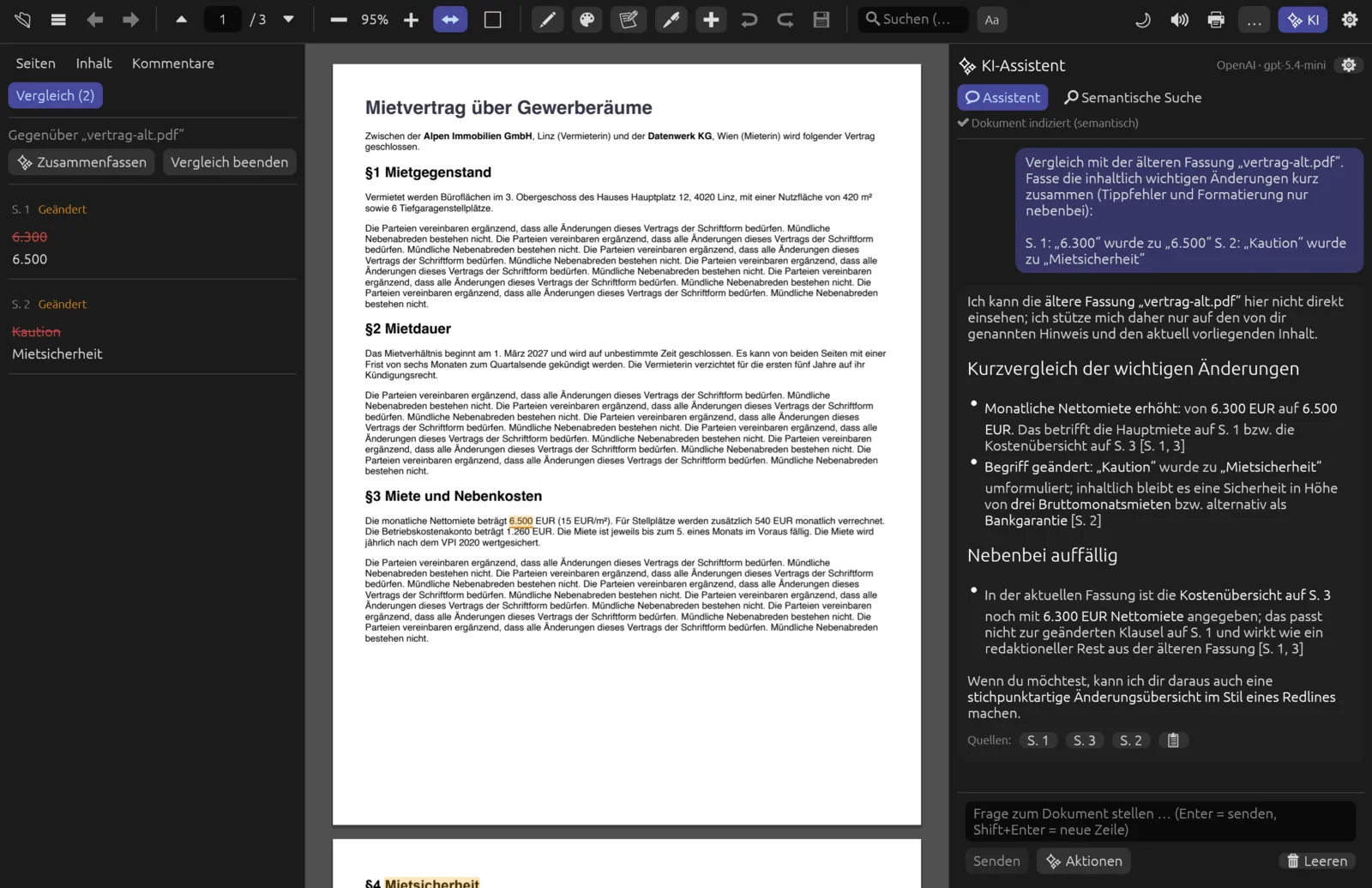
The summary doesn’t replace a look at the list: the AI may weigh a change wrongly or miss one. With very many changes the list is shortened (to about 12,000 characters), and the AI then only summarises the beginning. The changes are sent to the configured AI provider – with a local model they stay on your computer (see AI assistant).