Convert & Export
Not every PDF is equally useful: a scan can’t be searched, and sometimes you need the content in Word, as images or as plain text. The other way round, you want photos or Office files as PDF. This chapter explains text recognition and every route into a PDF and back out again.
All commands live in the (More) menu at the right of the toolbar: text recognition and the page and text exports in the left column, the conversions in the right column under (Convert).
| Command | Result |
|---|---|
| (Recognise text) | Invisible text layer on scanned pages – the document becomes searchable. |
| (Export page as image) | Current page as a PNG at 300 dpi. |
| (Export text) | Text of all pages as a UTF-8 text file (.txt). |
| (As Word document) | Text with paragraphs and headings as a Word file. |
| (All pages as images) | Every page as a PNG at 150 dpi in a folder. |
| (Images to PDF) | New PDF from PNG and JPEG images. |
| (Open Office file as PDF) | Word, Excel, PowerPoint and OpenDocument files as PDF (needs LibreOffice). |
Text recognition (OCR)
A scanned document consists of images – you can’t search it or select text, and the AI assistant only sees empty pages. When you open such a PDF, Pagelier tells you: the PDF contains no text (scan), and , “Text erkennen (OCR)” makes it searchable.
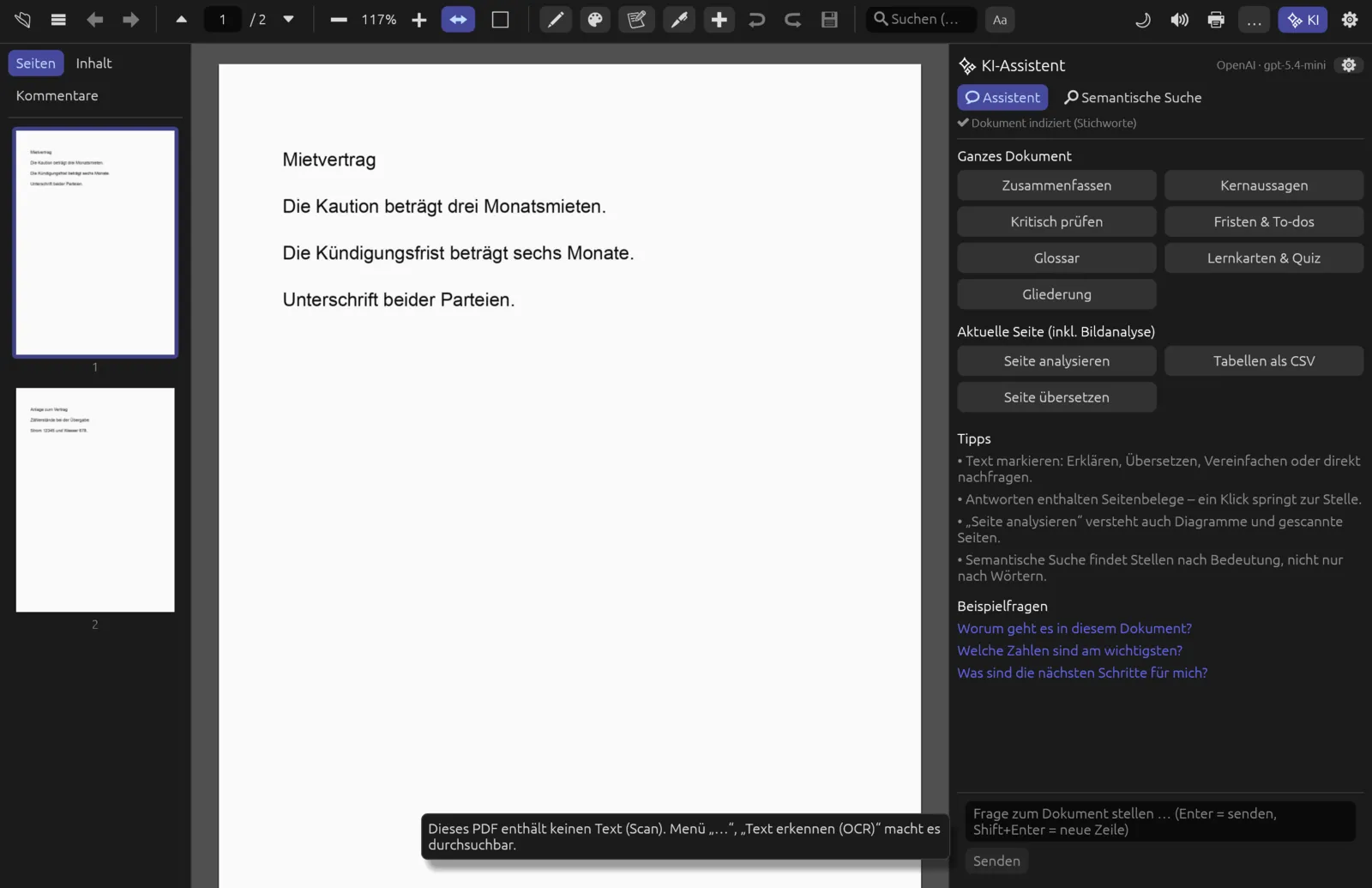
Text recognition uses your operating system’s services; nothing is sent to the internet:
| System | Text recognition |
|---|---|
| macOS | Vision (built in), languages German, English and French. |
| Windows | Windows text recognition (built in) in the languages of your user profile. |
| Linux | The tesseract program, if installed (preferably with the German, English and French language packs). If it’s missing, Pagelier reports that no text recognition is available and asks you to install “tesseract”. |
Make a scan searchable
- Open the scanned PDF and wait until its text has been read (otherwise Pagelier says “Text wird noch gelesen …” – text is still being read, try again shortly).
- Choose . The message “Texterkennung: 1 von 2 Seiten” shows the progress.
- To cancel, choose (Cancel text recognition) in the same menu.
- At the end Pagelier reports “Texterkennung fertig: N Seite(n) durchsuchbar” (N pages searchable). You can now search, select and ask the AI assistant.
- Save with ⌘ S so the text layer stays in the file.
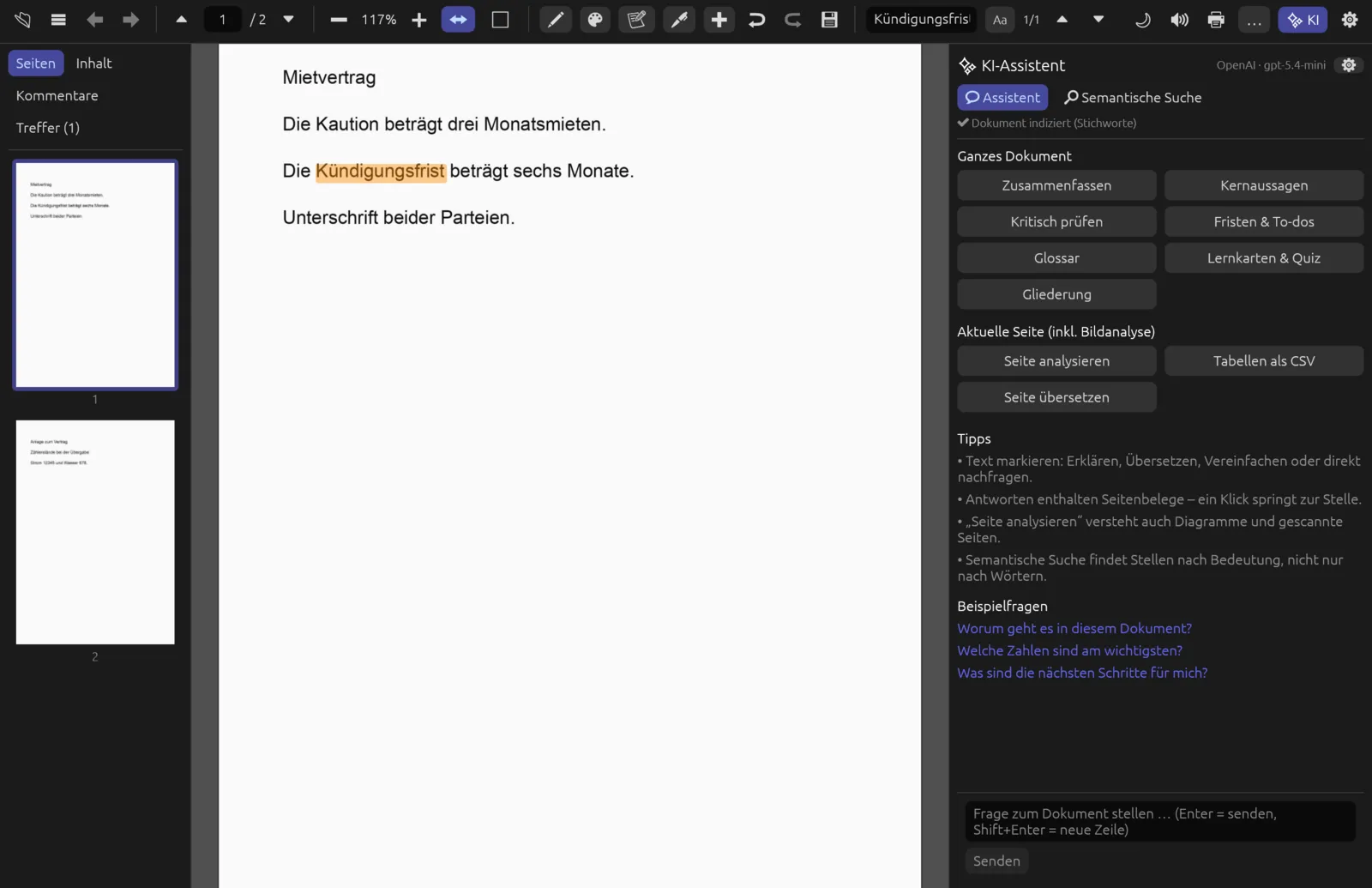
Only pages with (almost) no text are recognised; pages with real text stay untouched. If every page already has text, Pagelier says so (“Alle Seiten enthalten bereits Text”). The pages look the same as before – the recognised text sits invisibly over the image.
How well recognition works depends on the scan: skewed, blurred or very small print leads to errors, and handwriting is usually not recognised. Check important passages before relying on the search.
Exporting from a PDF
As a Word document
asks for a file name and writes the document’s text to a Word file. Pagelier joins lines into paragraphs, rejoins hyphenated words, recognises headings by their larger type (two levels) and inserts a page break after every PDF page. At the end it reports “Word-Dokument gespeichert: name.docx” (Word document saved).
Only the text is carried over. Images, tables, columns, fonts and colours are lost – the Word document is a starting point for further writing, not a copy of the layout. If the PDF contains no text, Pagelier asks you to run “Text erkennen (OCR)” first.
As images
- saves the current page as a PNG at 300 dpi, suggested as “name-Seite-1.png”.
- asks for a folder and saves every page as a PNG at 150 dpi: “name-Seite-001.png”, “name-Seite-002.png” and so on.
As text
saves the text of all pages as a UTF-8 text file. Each page starts with a line such as ===== Seite 1 =====, so you can find your way back.
Converting to PDF
Images to PDF
Combine photos of receipts, whiteboards or single sheets into one PDF. Each image becomes an A4 page – portrait or landscape to match the image – fitted with a small margin and centred. PNG and JPEG are supported.
Combine several photos into one PDF
- Choose .
- Select all the images you want in the dialog (⌘-click for several) and confirm.
- In the second dialog, enter a name for the PDF (suggested: “Bilder.pdf”).
- The new PDF opens in its own tab. You can reorder or rotate pages as usual (see Pages & documents).
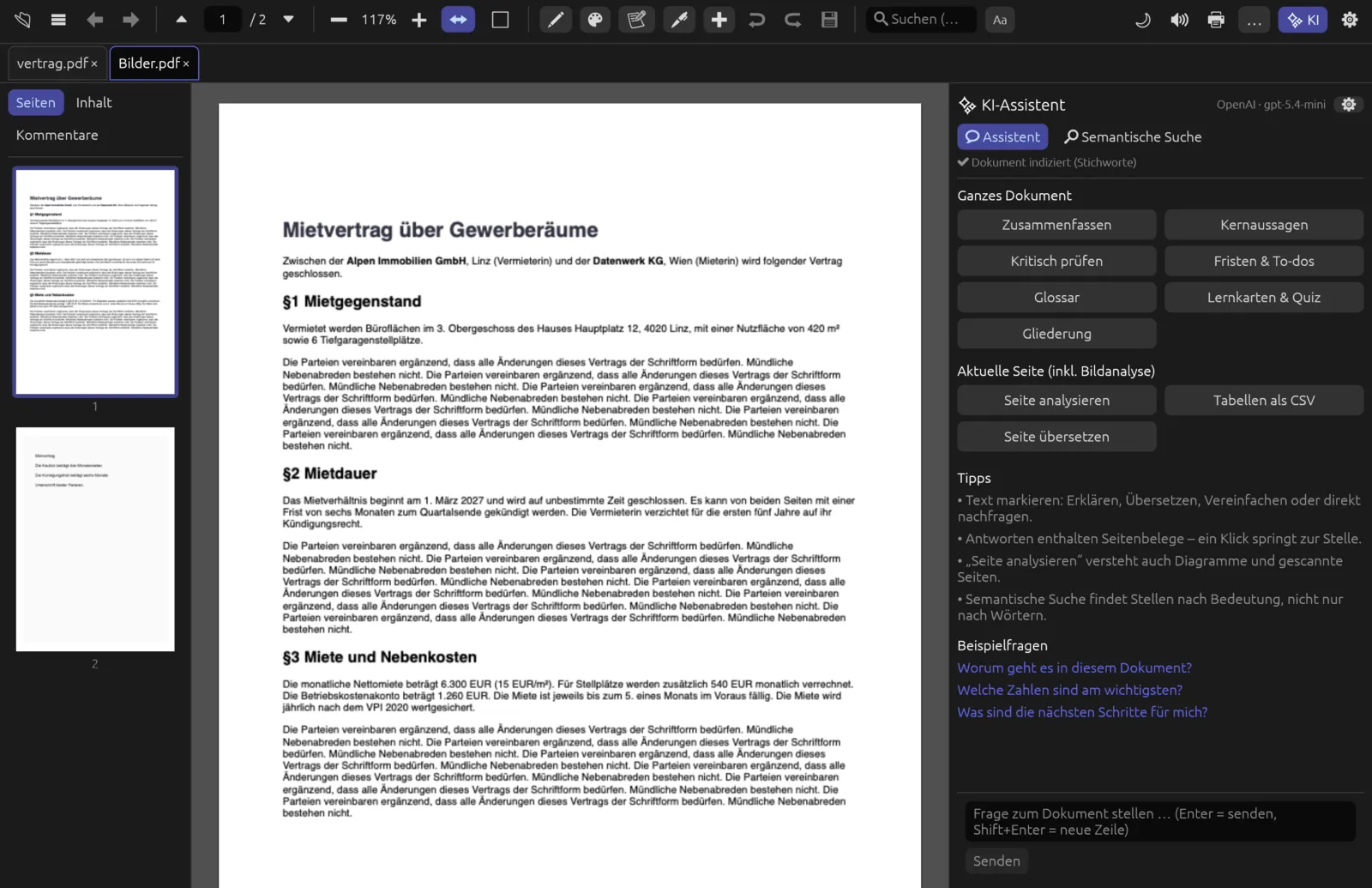
The pages of the new PDF are images without text. Use text recognition afterwards to make them searchable.
Opening Office files as PDF
converts files in the formats .docx, .doc, .odt, .rtf, .txt, .xlsx, .xls, .ods, .csv, .pptx, .ppt and .odp to PDF and opens the result. The conversion itself is done by LibreOffice in the background – it must be installed (free from libreoffice.org). Pagelier looks for it in the usual places (on macOS in /Applications, on Windows in C:\Program Files, on Linux in /usr/bin, otherwise via the search path). An open LibreOffice window doesn’t get in the way.
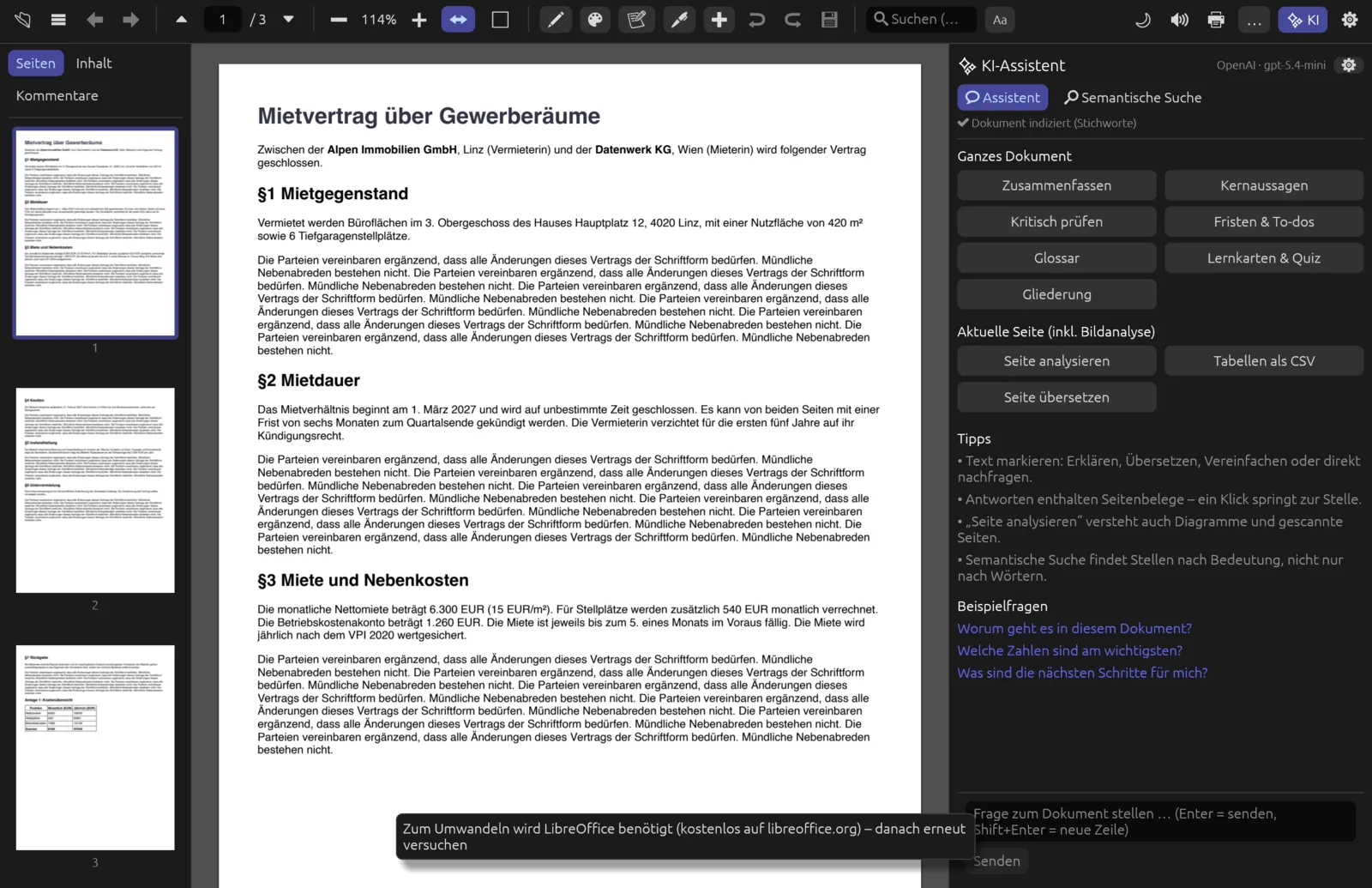
Save a Word file as PDF
- Install LibreOffice if you haven’t already.
- Choose and pick the file. The message “Wandle mit LibreOffice um …” (converting with LibreOffice) appears.
- After a few seconds the PDF opens in a new tab.
- Save it with (Save as, ⌘ ⇧ S) wherever you like – the converted PDF initially lives only in a temporary folder.
The result depends on LibreOffice: with complex Word or PowerPoint files, fonts, spacing or line breaks may differ slightly from the original.