Highlighting & Commenting
When you work through a document, you want to highlight important passages, jot down questions and discuss them with others. Pagelier creates genuine PDF annotations for this: highlights, underlines, strikethroughs and notes, which you can reply to and give a status. Other PDF programs display them in exactly the same way.
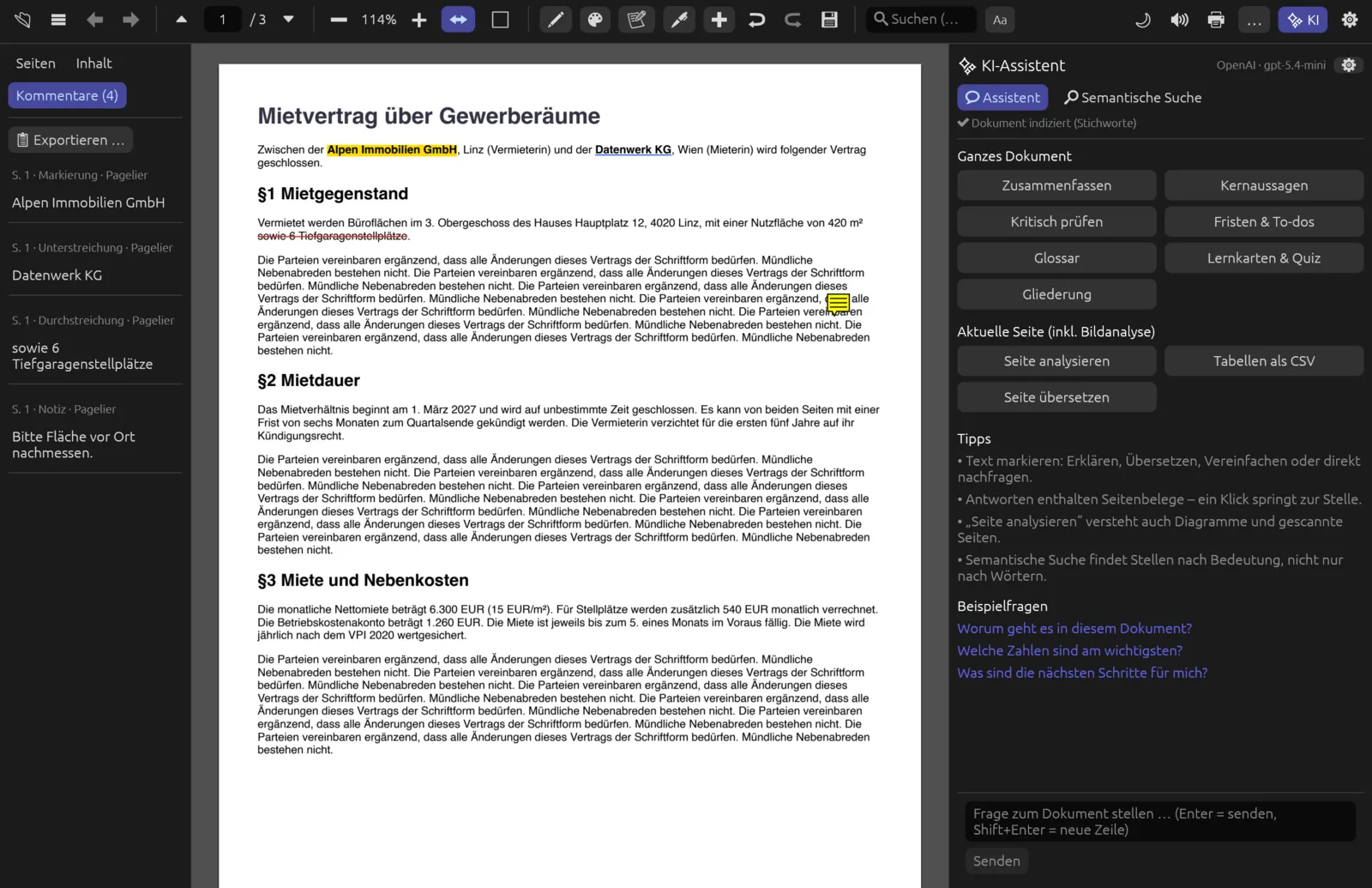
The tools in the toolbar
For commenting you only need the group in the middle of the toolbar. Hover over an icon to see its name. The interface is in German; translations are given in brackets.
| Icon | Name (tooltip) | What it does |
|---|---|---|
| Pen ✏ | Markierwerkzeug (highlighter tool) | While it is on, any text you drag across is highlighted immediately. A double-click highlights a single word. |
| Palette 🎨 | Markierfarbe (highlight colour) | Chooses the highlight colour: Gelb (yellow), Grün (green), Blau (blue) or Rosa (pink). Picking a colour also switches the highlighter on. |
| Notepad 📝 | Notiz: auf die Seite klicken (note: click on the page) | Your next click on the page places a note there. |
| ↩ / ↪ | Rückgängig (undo) / Wiederholen (redo) | Reverts the last change (⌘ Z) or restores it (⌘ ⇧ Z). |
| 💾 | Speichern (save) | Writes all annotations to the file (⌘ S). |
Press Esc to switch off any tool and return to normal text selection.
Highlighting, underlining, striking through
There are three ways to mark up a passage:
- Selection and action bar: drag across the text with the mouse. A floating bar appears below the selection with Kopieren (copy), Markieren (highlight), U (underline), S (strike through) and ⬛ (mark for redaction). The AI actions sit to the right (see AI Assistant).
- Context menu: right-click inside the selection and choose Markieren, Unterstreichen (underline) or Durchstreichen (strike through).
- Keyboard shortcut: ⌘ ⇧ H highlights the current selection.
Highlights use the chosen highlight colour; underlines are always blue and strikethroughs always red. If the selection spans several lines, each line is marked up separately.
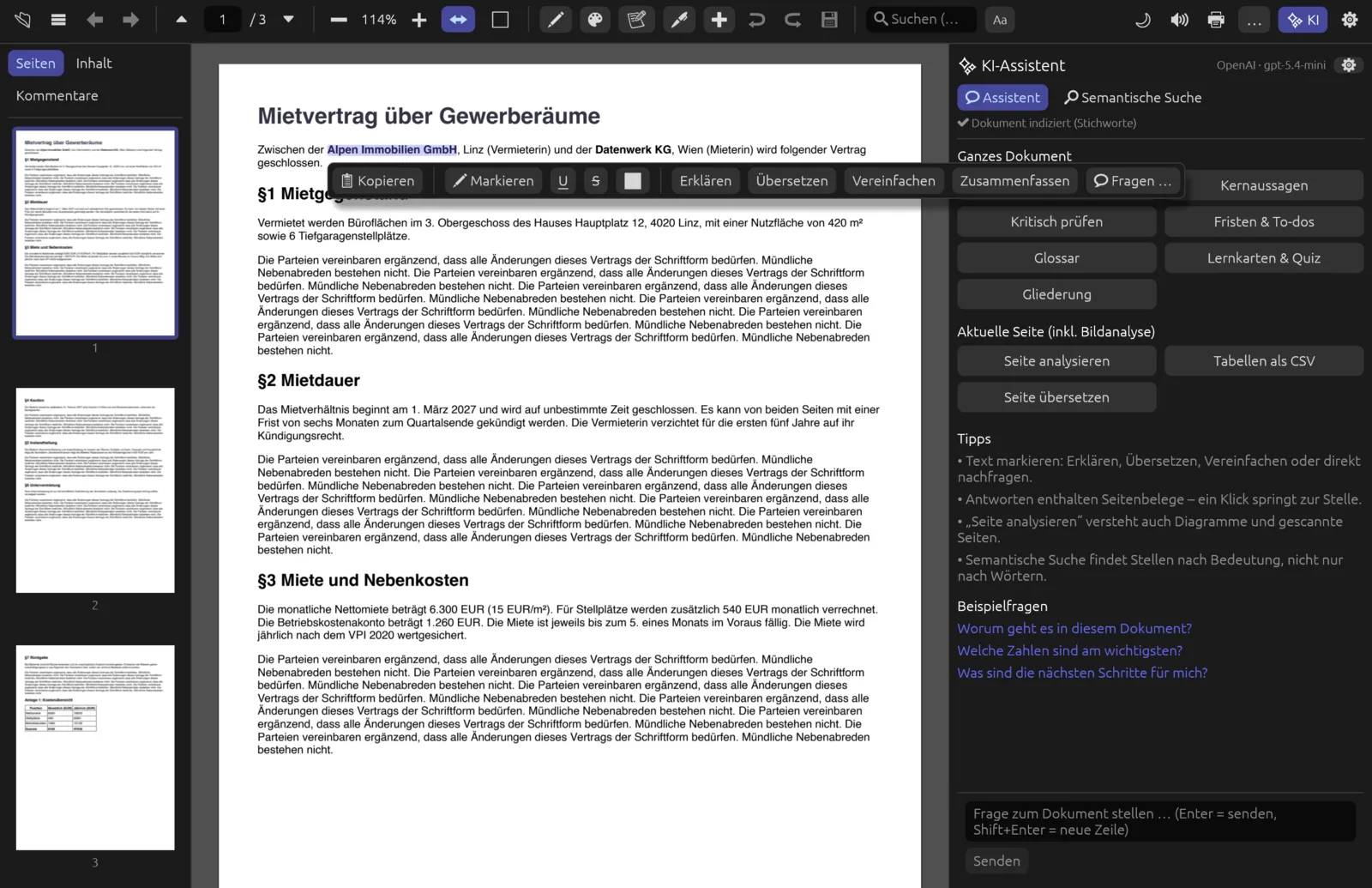
Highlighting many passages quickly
- Click the palette icon 🎨 and pick a colour, for example Grün. The highlighter is now on.
- Drag across every passage you want to highlight. It is highlighted as soon as you release the mouse button.
- For single words, a double-click is enough.
- When you are done, press Esc or click the pen ✏ again.
- Save with ⌘ S.
Highlighting only works where the PDF contains real text. On scanned pages nothing can be selected – make them searchable with text recognition first (see Converting & Exporting).
Notes
A note is a small yellow icon on the page with text behind it – like a sticky note. Hover over the icon to see the text as a tooltip.
Adding a note
- Click the note icon 📝 in the toolbar – or right-click an empty spot on the page and choose Notiz hier einfügen (insert note here).
- Click the place on the page where the note should go. A Notiz (note) box opens.
- Type your text.
- Click Speichern (save) or press ⌘ Enter. Abbrechen (cancel) or Esc discards the note.
After each note the tool switches back to selection, so you don't create a second one by accident.
Editing notes and commenting on highlights
- Clicking a note icon opens the note again. You can change the text and confirm with Speichern, or remove the note with Löschen (delete).
- A highlight, underline or shape can carry text too: right-click it and choose Kommentar … (comment). The text then appears as a tooltip and in the comment list.
The comment list
You will find the Kommentare (comments) tab at the top of the sidebar. The number in brackets tells you how many annotations the document has. The first line of each entry shows the page, type and author, for example “S. 1 · Markierung · anna” (p. 1 · highlight; Pagelier enters your computer's user name as the author of annotations and replies), followed by the highlighted text or the note text. Replies are indented below, and a status appears in colour next to the header line.
- Clicking an entry jumps to its page.
- Right-clicking opens a menu with Antworten … (reply), Status, Text bearbeiten … (edit text – for notes and annotations with text) and Löschen (delete).
- Exportieren … (export) at the top of the list saves all annotations including replies and status as a text file (suggested name: filename-Anmerkungen.txt).
The list contains not just highlights and notes but every annotation – including text, shapes, stamps, images and signatures you add as described in Editing.
Replies and status
When several people review a document, you can reply to any annotation and give it a status. Pagelier stores both as reply annotations in the PDF, just as other PDF programs do. The author of a reply is your computer's user name, together with date and time.
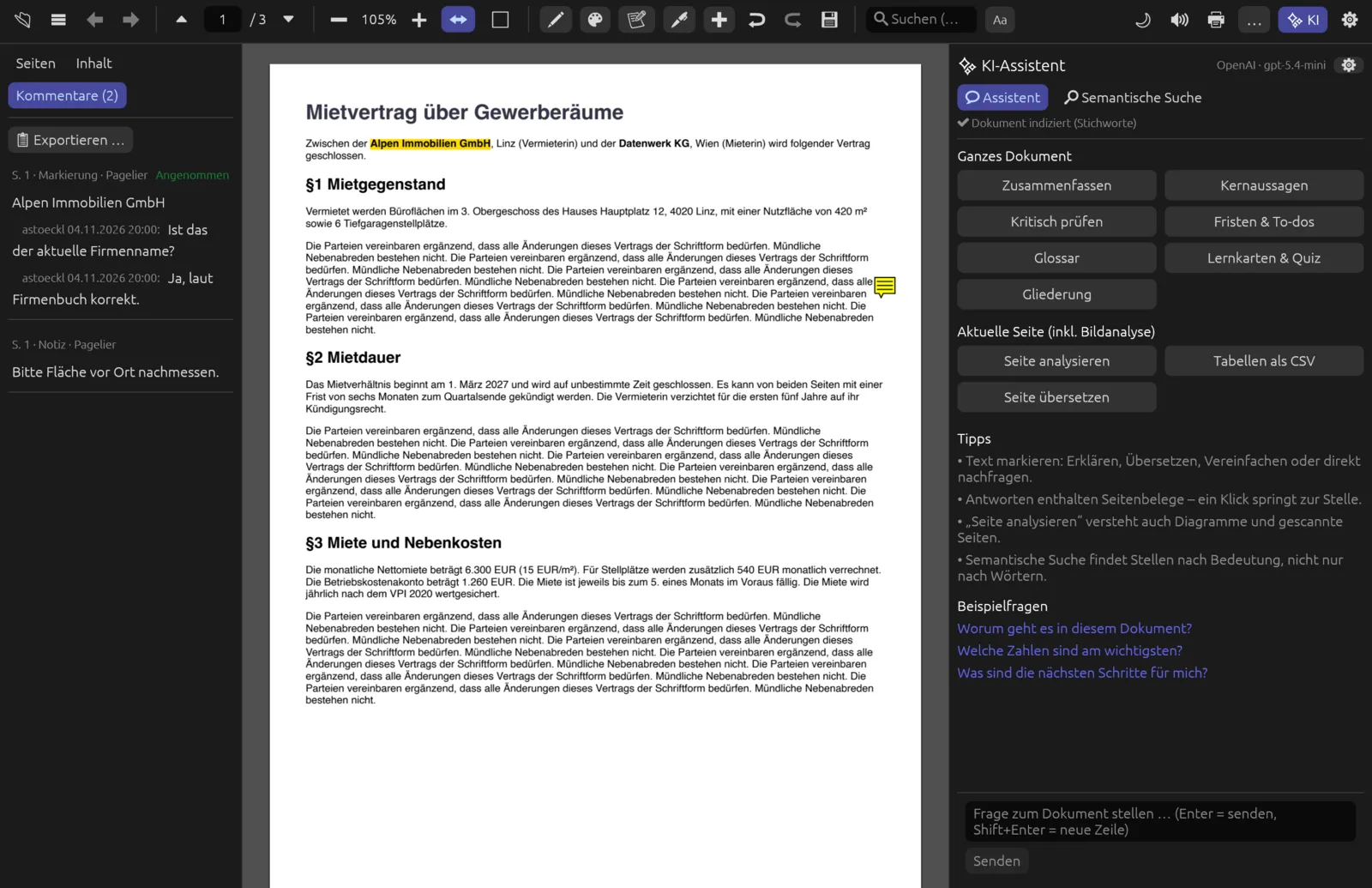
Replying to a comment
- Open the Kommentare tab in the sidebar.
- Right-click the entry and choose Antworten ….
- An input box Antwort … (reply) appears below the entry. Type your reply.
- Click Antworten or press ⌘ Enter. Abbrechen closes the box without replying.
Setting a status
- Right-click the entry in the comment list.
- Point to Status and choose Angenommen (accepted), Abgelehnt (rejected), Erledigt (completed), Abgebrochen (cancelled) or Kein Status (no status).
- The status appears next to the header line: accepted and completed in green, rejected and cancelled in red.
The most recently set status always applies. Each status change is stored internally as a short reply “Status: …”; the list only shows you the status itself.
Deleting annotations
- Right-click the annotation on the page and choose Anmerkung löschen (delete annotation).
- Or in the comment list: right-click the entry and choose Löschen.
- With a note open: Löschen in the note box.
If you made a mistake, ⌘ Z brings the annotation back. Until you save, the file on disk stays unchanged.
Highlights and notes only sit on top of the page – the text underneath is unchanged. If something really has to be made unreadable, use redaction.